

How to bring remote guests onto your livestream with just a link
Interview guests anywhere in the world on your live show. They join from a browser on a computer or phone, with nothing to install.
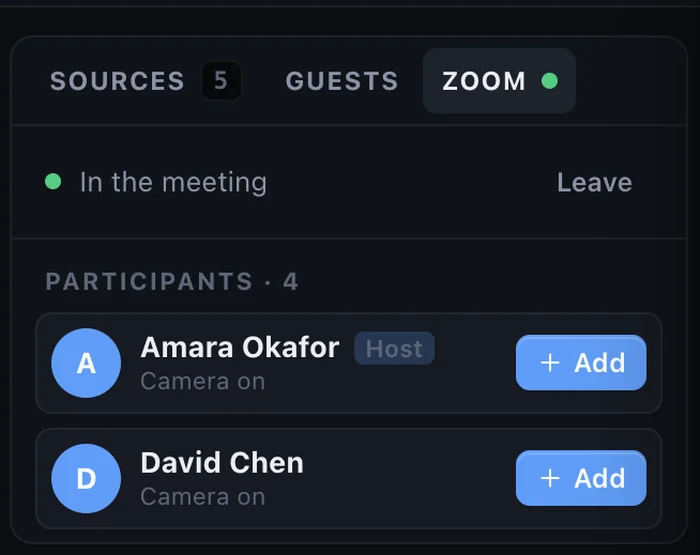
Interviews, panels and call-ins make a livestream feel alive. The hard part used to be getting the guest connected: installing software, creating accounts, fighting echo. With browser guests, you send a link and the guest is in your show a minute later.
What your guest needs
- Chrome, Safari, Edge or Firefox on a computer or a phone.
- A camera and microphone, which almost every laptop and phone has.
- Headphones, if they have them. Not required, but they help.
No app, no account, no download.
Step 1: Open a guest room
In the StreamPort Studio, open the Guests tab and open a guest room. Copy the link and send it by email, text or WhatsApp.
Step 2: Let them in
When the guest opens the link, they see themselves and test their camera and mic. You see them waiting and choose when to let them in. Nobody can walk into your show uninvited.
Step 3: Put them in a scene
Each guest becomes a source, just like a camera, with their own channel in the audio mixer. Build an interview scene with you and the guest side by side, or a grid for a panel, and Take it when you are ready.
Guests hear the show without hearing themselves, so there is no echo. They can share their screen too, and if their connection drops they come back through the same link.
Getting good quality from guests
- Light in front, not behind. Ask guests to face a window or lamp, never to sit with a bright window behind them.
- Camera at eye level. A laptop on a few books beats one looking up the nose.
- Wired or close to the router. Wi-Fi far from the router is the most common cause of a frozen guest.
- Level their sound. Use the guest’s channel in the mixer to match their volume to yours.
How many guests?
The Solo plan includes 2 guests at a time and the Studio plan 4. On the Studio plan you can also join a Zoom meeting and bring each Zoom participant in as their own source, which is handy when a guest already lives in Zoom.
Learn more on the guests and Zoom page.
Try StreamPort free for 14 days
Every feature, no credit card. Apple Silicon and Intel Macs.
Keep reading
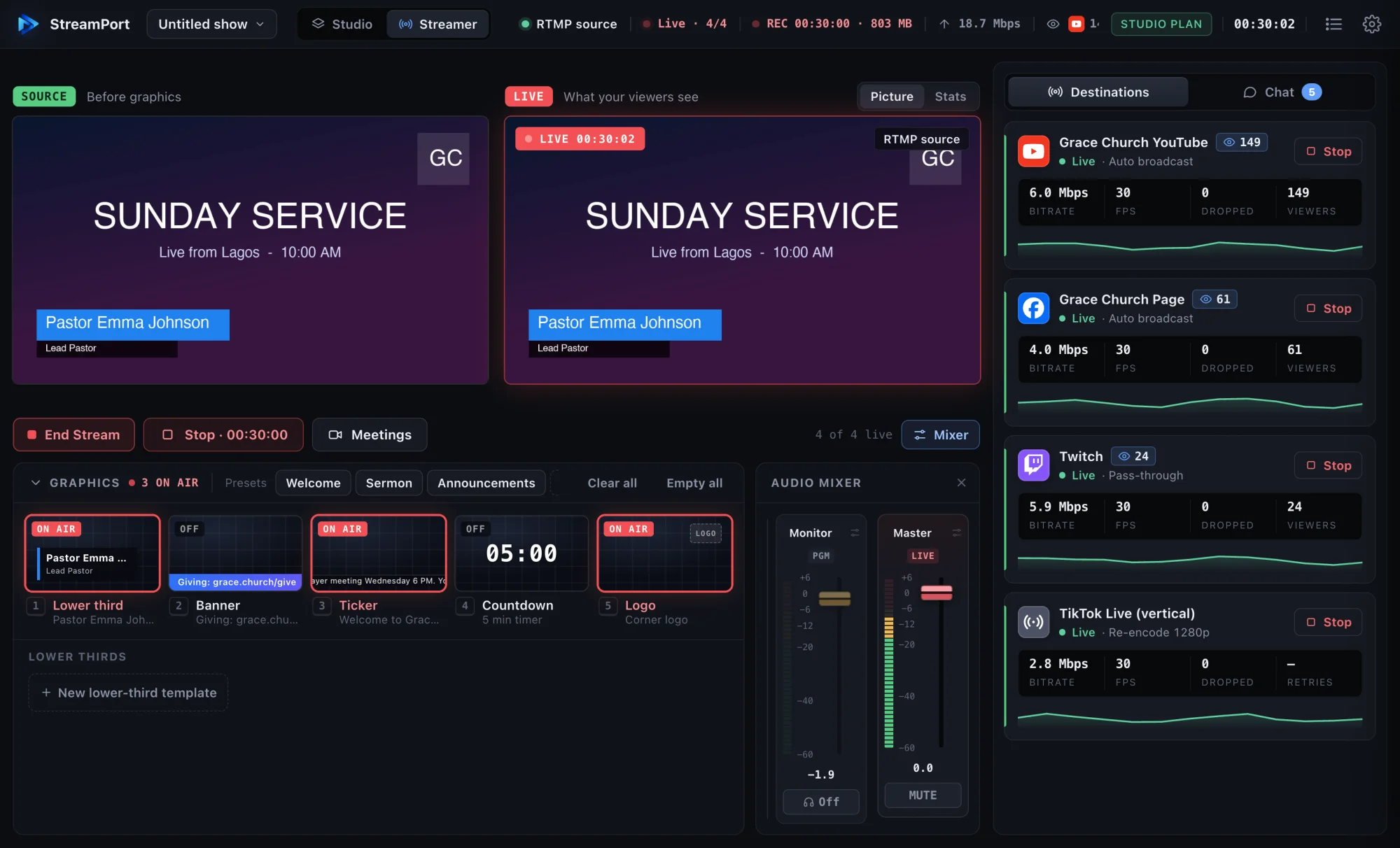
How to stream to YouTube and Facebook at the same time on a Mac
Go live on YouTube, Facebook and other platforms at once from one Mac, without a paid relay service or a second computer.
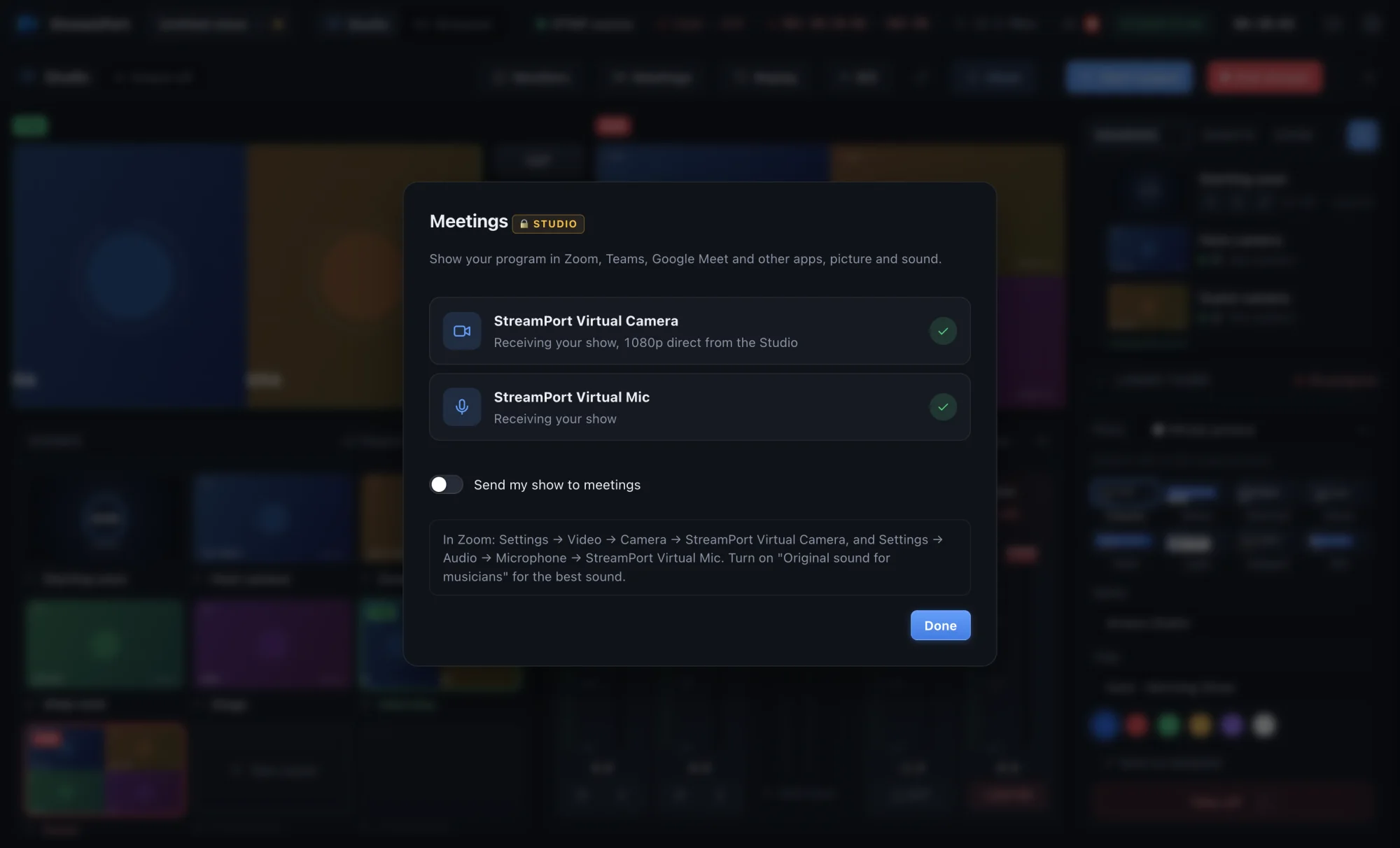
How to use your live show as a camera in Zoom, Teams and Google Meet
Send your finished show, with graphics, scenes and clean sound, into any meeting app as a camera and microphone.
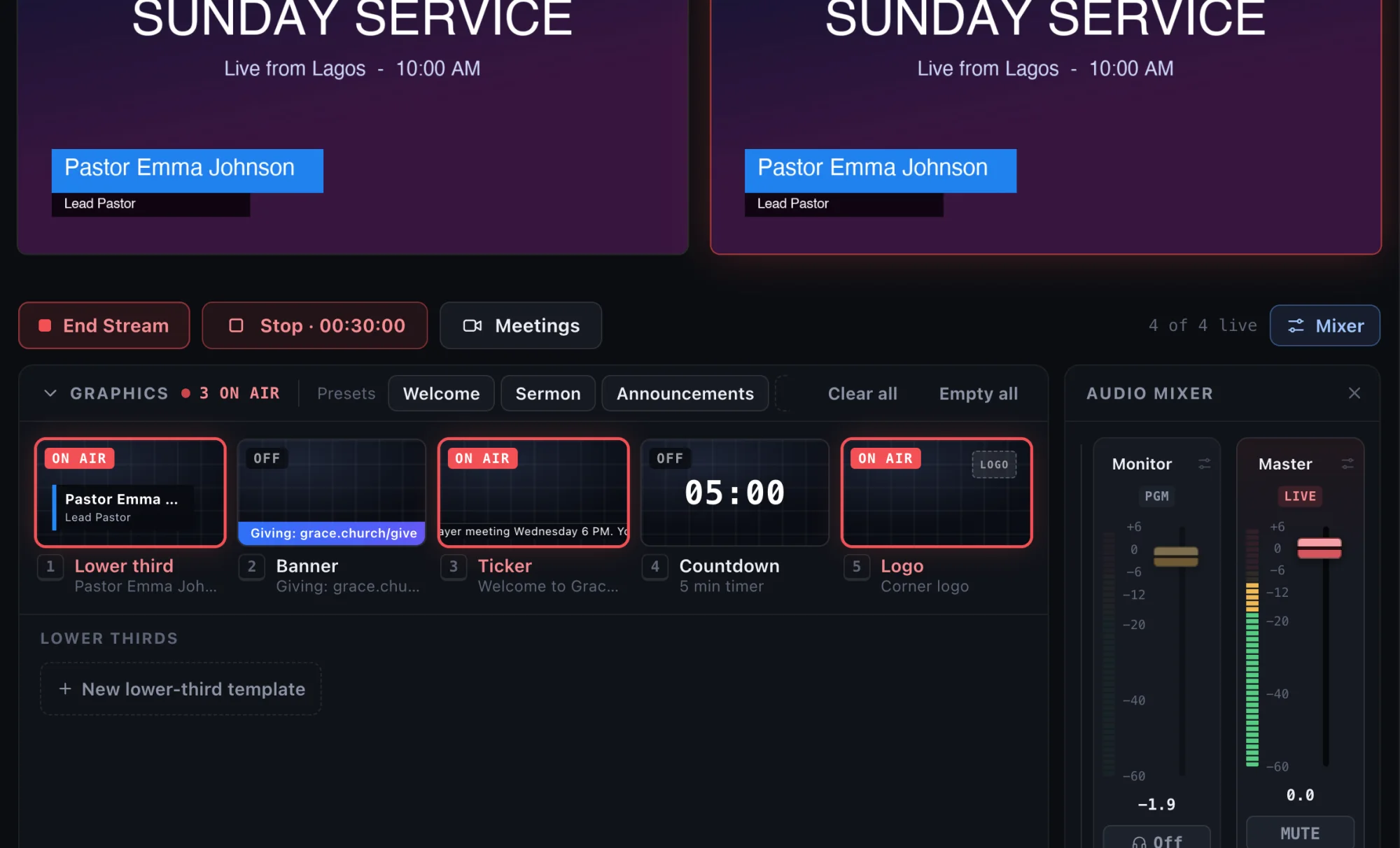
How to add lower thirds to a livestream (that look like TV)
Show names, titles, links and announcements on your livestream with clean lower thirds, banners and tickers.