

How to stream to YouTube and Facebook at the same time on a Mac
Go live on YouTube, Facebook and other platforms at once from one Mac, without a paid relay service or a second computer.
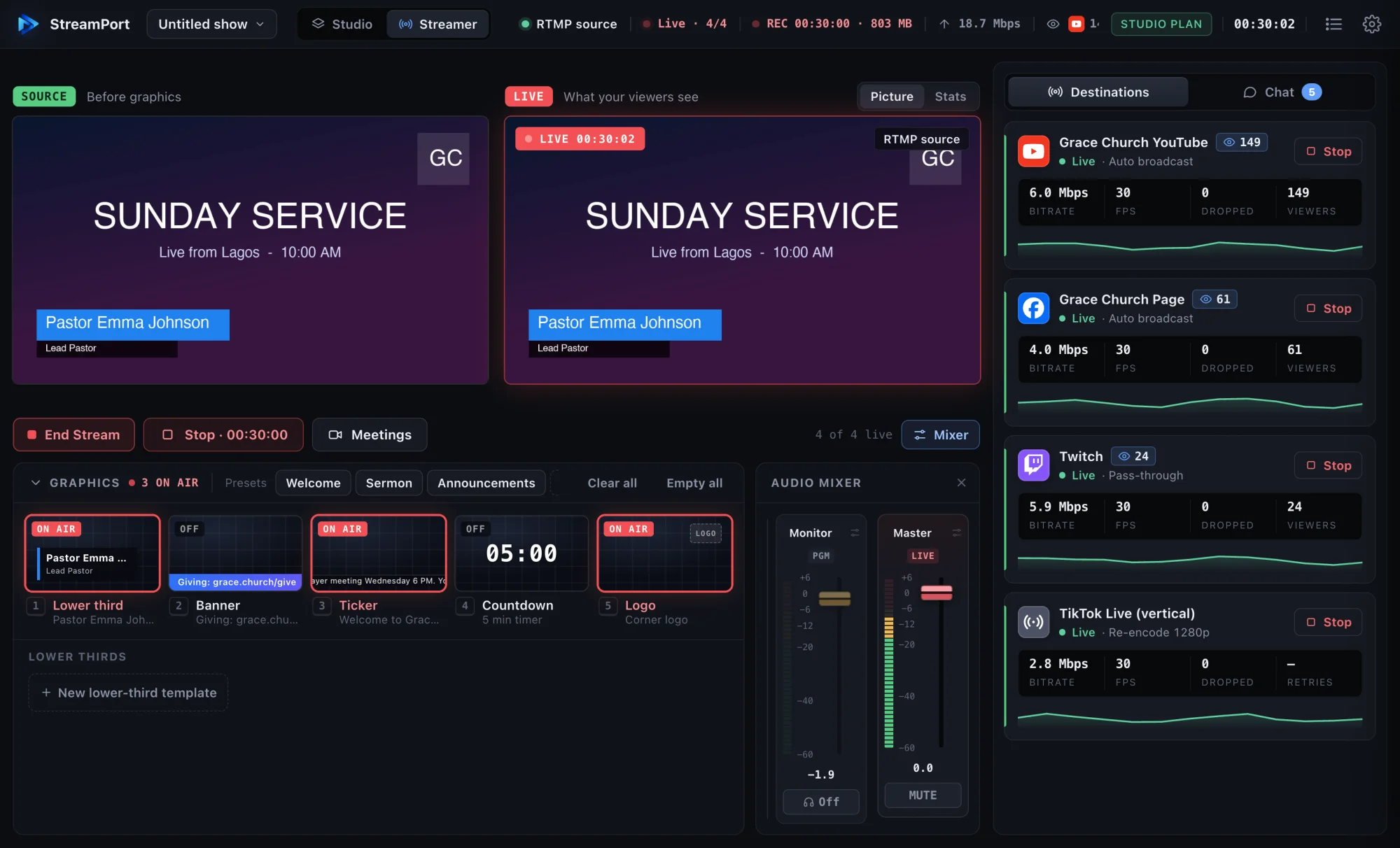
Your audience is split. Some people watch on YouTube, some on Facebook, a few on Twitch or Instagram. Choosing one platform means leaving the others out, and running two computers or two apps is fragile. Multistreaming solves this: you produce one show and send it to every platform at the same time.
This guide shows how to do it on a Mac with StreamPort, from adding your first destination to watching every stream’s health while you are live.
What you need
- A Mac with Apple Silicon or Intel, running macOS 12 or later.
- A camera: your Mac’s built-in camera, a USB webcam, or a camera through an HDMI capture card.
- A stream key from each platform you want to reach.
- Enough upload speed for every destination (more on that below).
Step 1: Get your stream keys
Each platform gives you a server address and a private stream key in its live dashboard:
- YouTube: YouTube Studio → Create → Go live → Stream. Copy the stream key.
- Facebook: Live Producer → Streaming software. Copy the stream key.
- Twitch: Creator Dashboard → Settings → Stream. Copy the primary stream key.
Treat stream keys like passwords. Anyone with your key can stream to your channel.
Step 2: Add the destinations
In StreamPort, open Settings → Destinations → Add destination. Choose the platform and paste its stream key. For a custom RTMP service, add the server URL too. Repeat for each platform. Keys are stored in your Mac’s keychain and hidden in every log.
StreamPort lists 15 destinations, including YouTube, Facebook, Twitch, Kick, TikTok, Instagram, X, LinkedIn, Vimeo and any RTMP server, so you can add more later.
Step 3: Build your picture
Open the Studio, press Add source and pick your camera. Add your microphone, then a scene. If you already produce your show in OBS or vMix, you can keep doing that: point its RTMP output at StreamPort and it will distribute that finished stream.
Step 4: Go live everywhere
Press Go Live. The pre-flight sheet checks your picture, sound and upload speed and lets you choose which destinations to start. Press start, and every platform receives the same show at the same time.
Each destination gets its own card with bitrate, frames per second, dropped frames and viewers. If one platform has a hiccup, StreamPort reconnects it on its own, and the other streams carry on untouched.
How much upload speed do you need?
When you multistream from your own computer, your internet uploads one copy of the stream for each destination. A good 1080p stream uses about 6 Mbps, so three destinations need about 18 Mbps of steady upload, plus headroom. Run a speed test at the time of day you stream, and aim for at least one and a half times what your streams need.
If your upload is tight, you have two options:
- Send a lighter version to some platforms. Per-destination re-encoding lets you send 720p to one platform while the others get full quality.
- Use StreamPort Cloud (Studio plan). Your Mac uploads one copy, and our servers send it to every platform.
Vertical platforms
TikTok and Instagram are watched on phones in portrait. Choose Vertical 9:16 for those destinations and StreamPort crops the centre of your picture for them, while YouTube and Facebook keep the full widescreen view. Keep the important part of your shot in the middle.
Common questions
Does multistreaming lower my quality?
No. By default each platform receives exactly the stream you produce. Quality only changes for a destination where you choose a different resolution.
Is multistreaming allowed?
YouTube and Facebook allow it. Some platforms have their own rules for partners or exclusive contracts, so check yours if you have one.
Try StreamPort free for 14 days
Every feature, no credit card. Apple Silicon and Intel Macs.
Keep reading
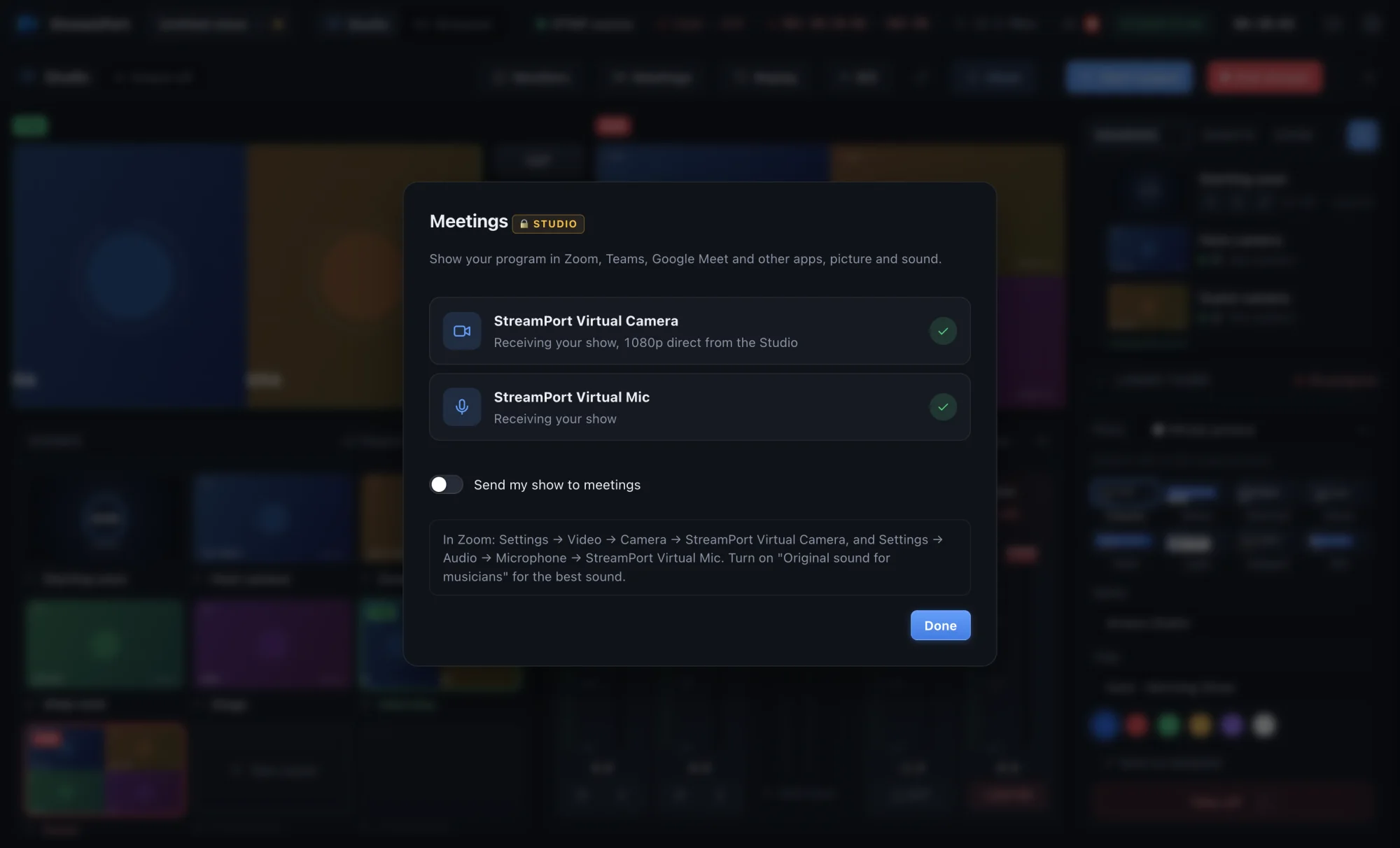
How to use your live show as a camera in Zoom, Teams and Google Meet
Send your finished show, with graphics, scenes and clean sound, into any meeting app as a camera and microphone.
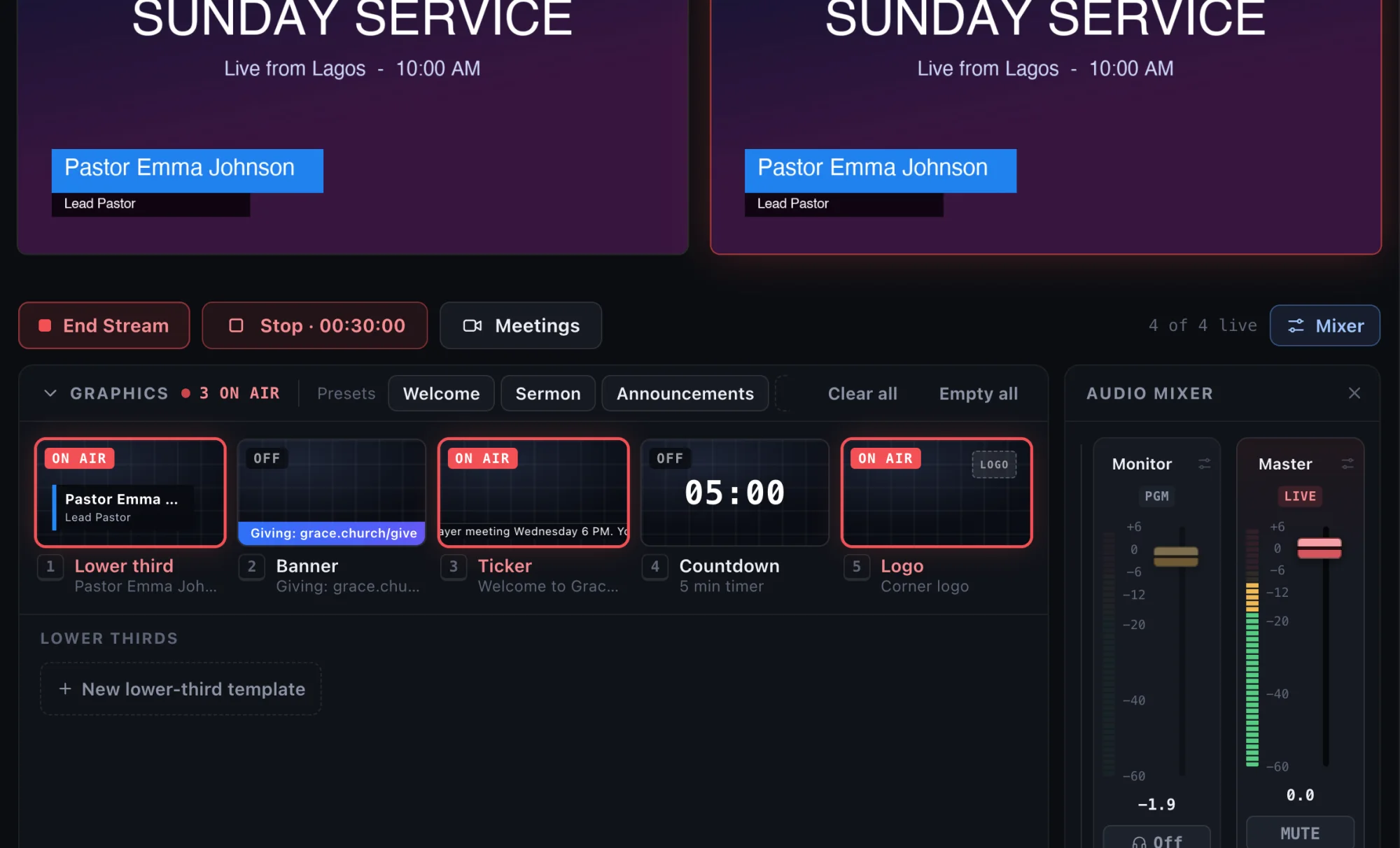
How to add lower thirds to a livestream (that look like TV)
Show names, titles, links and announcements on your livestream with clean lower thirds, banners and tickers.
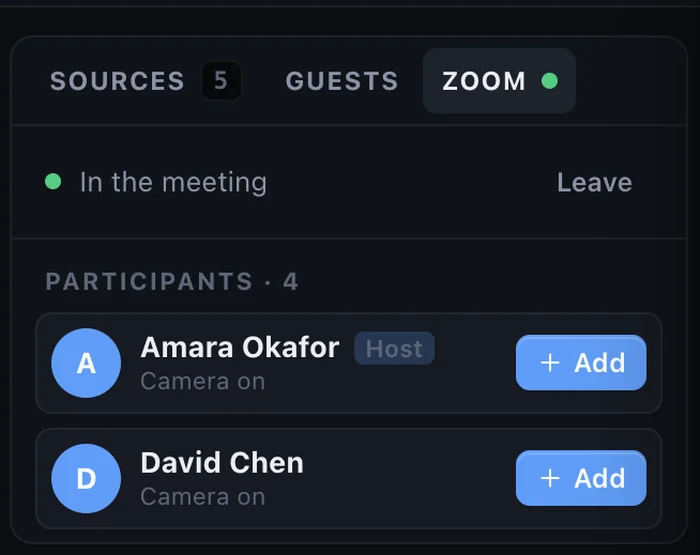
How to bring remote guests onto your livestream with just a link
Interview guests anywhere in the world on your live show. They join from a browser on a computer or phone, with nothing to install.