

How to run a church livestream with just one volunteer
Presets, schedules and automation that let one volunteer run a polished church livestream calmly, even on their first Sunday.
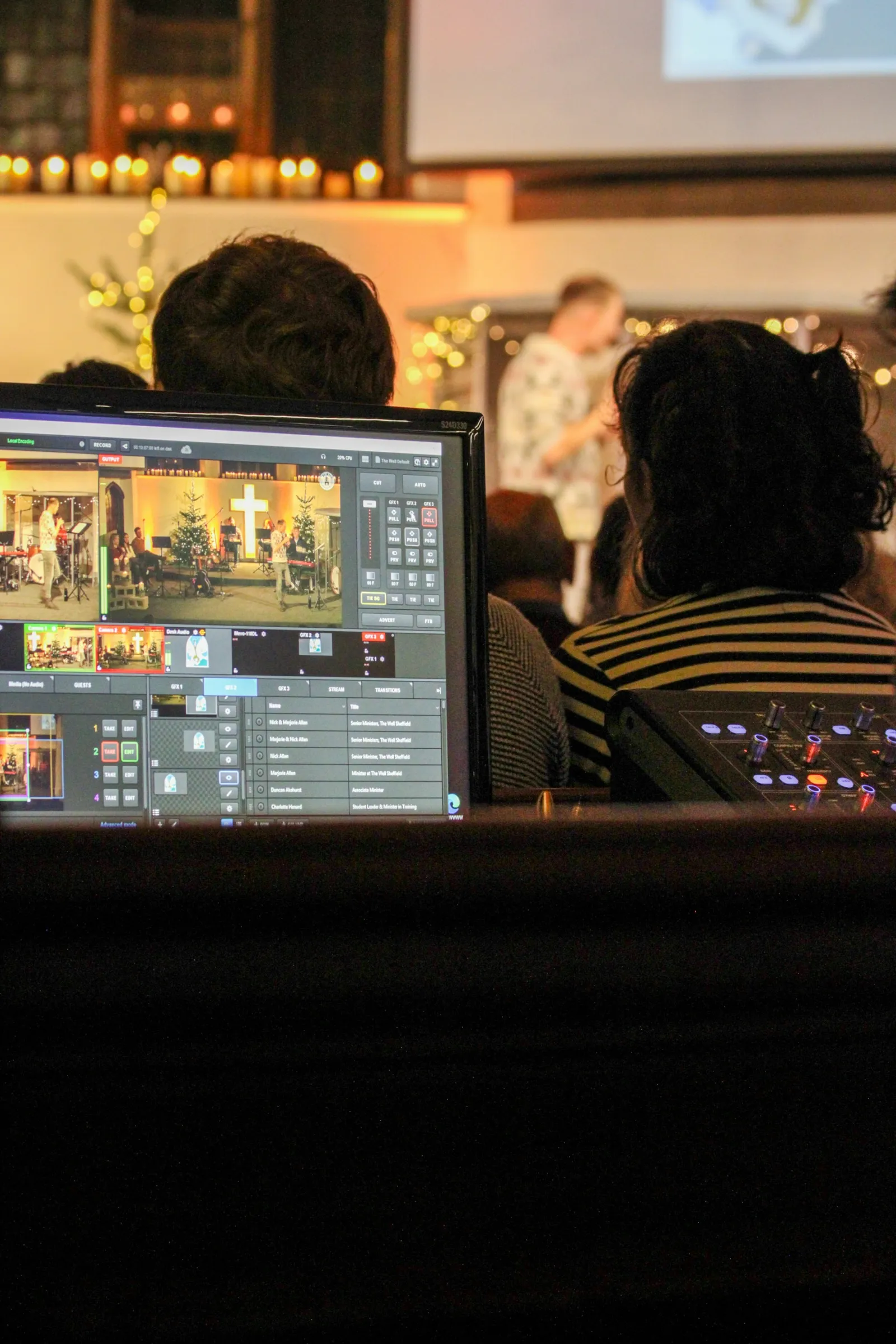
Most churches don’t have a media team. They have one faithful volunteer, often different each week, who would rather be worshipping than wrestling with software. The goal is a stream that mostly runs itself, with a few simple buttons for the moments that need a person.
1. Prepare once, reuse every week
Spend one afternoon building the service: scenes for the countdown, worship, sermon, scripture, announcements and closing; lower thirds for your regular speakers; a banner with your giving link. StreamPort saves all of it as a show. Every Sunday, the volunteer opens the same show and everything is where it was.
2. Use graphics presets
Group the graphics for each part of the service into presets: Welcome, Sermon, Announcements. The volunteer clicks a preset instead of typing during the service. Graphics are cued first and only go on air with Take, so a nervous click never puts the wrong thing on screen.
3. Let the schedule press the buttons
With the program schedule (Solo and Studio plans), put your service on a weekly calendar and add timed cues:
- 9:50: show the countdown scene and go live.
- 10:00: the countdown reaches zero and takes the worship scene by itself.
- 10:30: show the giving banner during the offering.
- 11:30: show the closing scene.
The volunteer only needs to switch between the worship and sermon cameras and take scripture lower thirds. Everything else happens on time.
4. Automate going live
StreamPort can go live automatically when your source connects and end when it disappears. Combined with the schedule, the volunteer doesn’t even need to remember to press Go Live.
5. Make mistakes forgiving
- Preview before Program: new scenes always land in Preview, never straight on air.
- Space clears graphics: one key takes every graphic off air.
- Backup slate: if a camera or the encoder drops, viewers see a branded “we’ll be right back” image.
- Automatic reconnect: if YouTube or Facebook hiccups, that stream reconnects by itself.
- Crash recovery: if StreamPort or the Mac stops unexpectedly while you are live, the next launch offers Resume streaming.
6. A one-page checklist
Print this and tape it next to the Mac:
- Turn on cameras and the sound desk feed.
- Open StreamPort and the Sunday show.
- Check the camera pictures and the sound meters.
- Check Stats: upload is green.
- Let the schedule start the countdown, or press Go Live.
- During the service: switch cameras, take scripture lower thirds.
- After: let it end, or press End Stream.
Our quick start guide is a good handout for new volunteers too.
7. Remote help
An experienced volunteer can help from home: control StreamPort from a phone or a Stream Deck, or watch the stream health while someone else runs the room. See Stream Deck and phone remote.
Try StreamPort free for 14 days
Every feature, no credit card. Apple Silicon and Intel Macs.
Keep reading
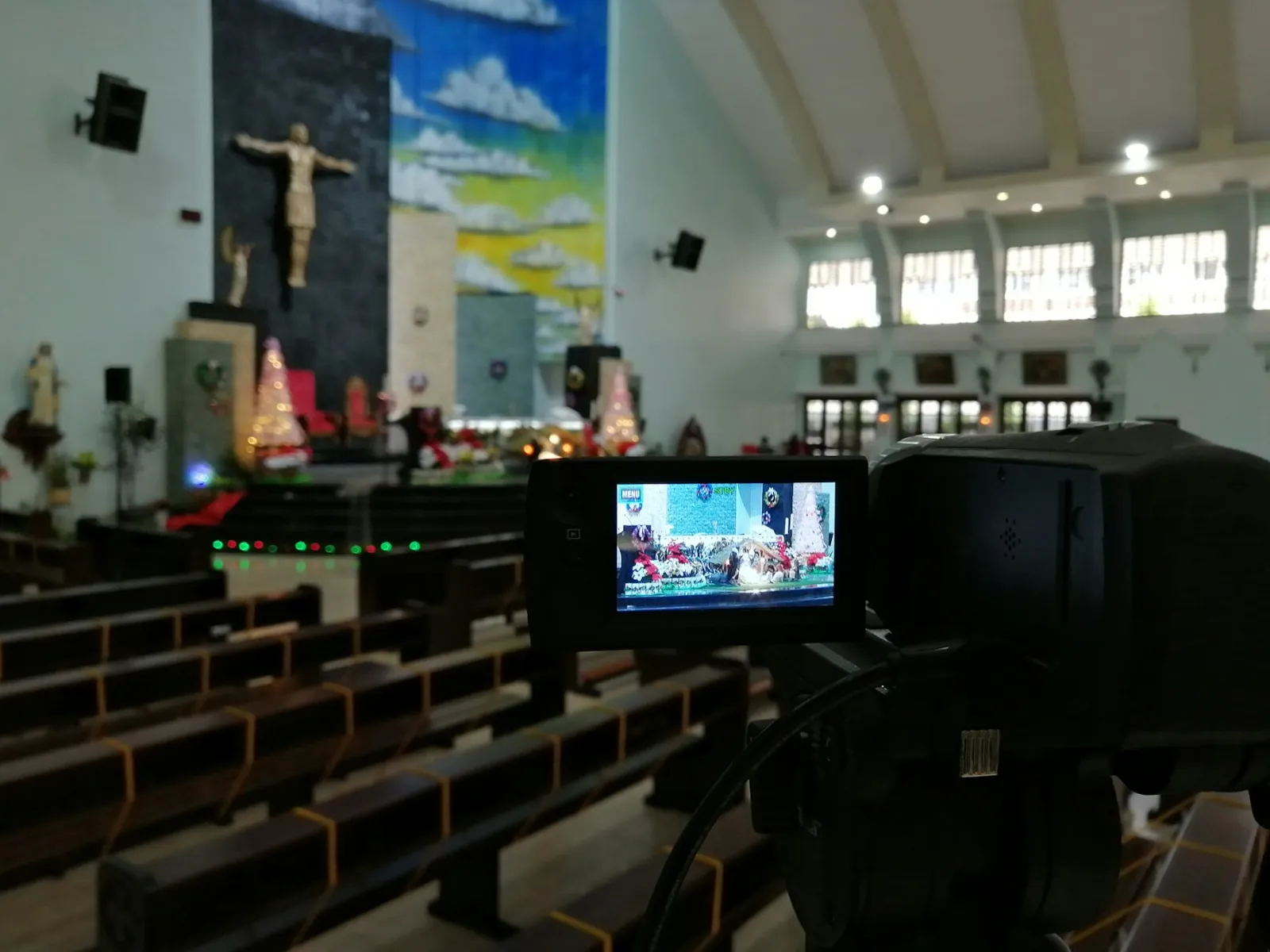
The simple church livestream setup: everything you need on one Mac
A practical, affordable church livestream setup for small and growing churches, from cameras and sound to going live on YouTube and Facebook.
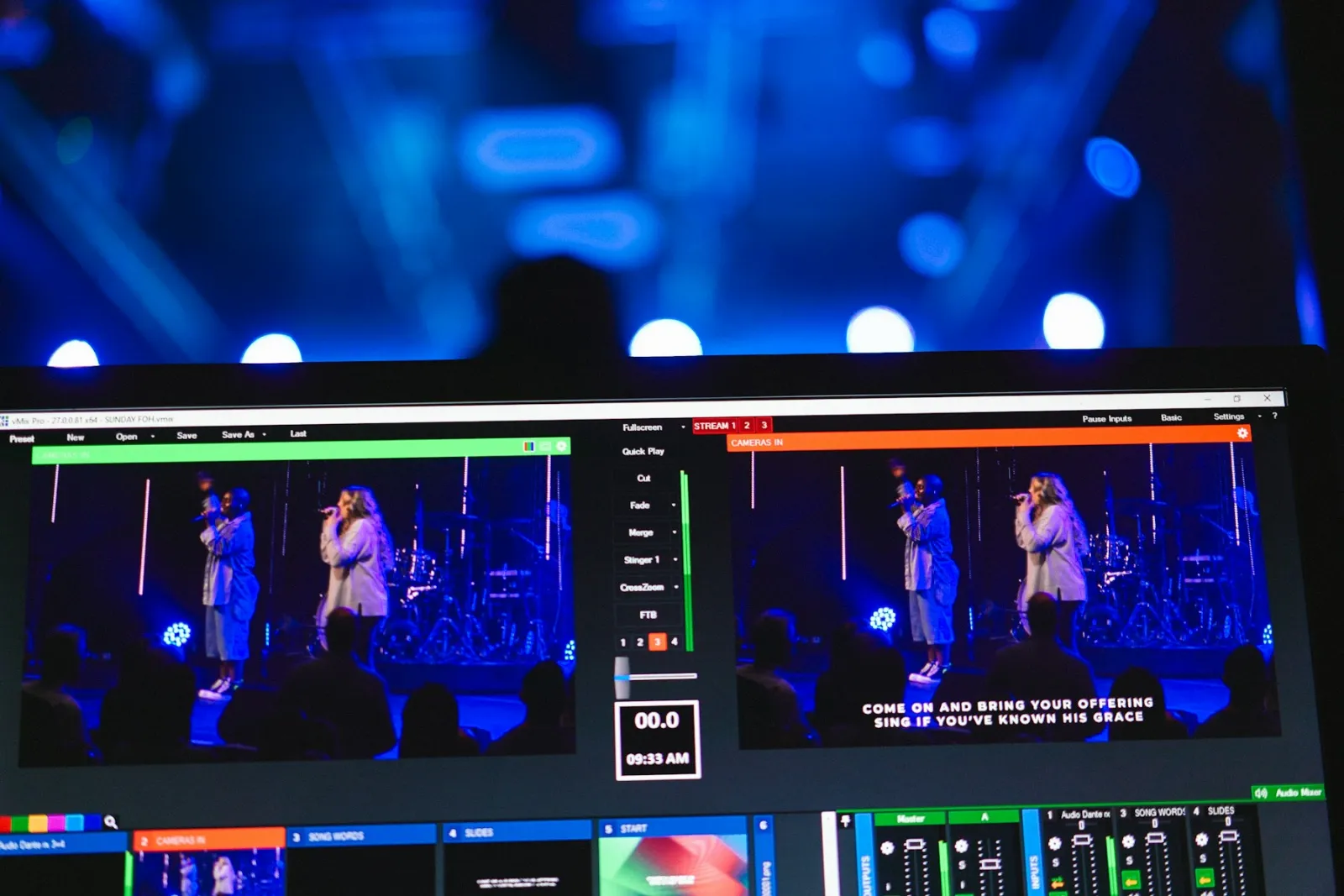
Church livestream graphics: scripture, giving and announcements
How to use lower thirds, banners, tickers and countdowns to make online worshippers feel welcome and engaged.
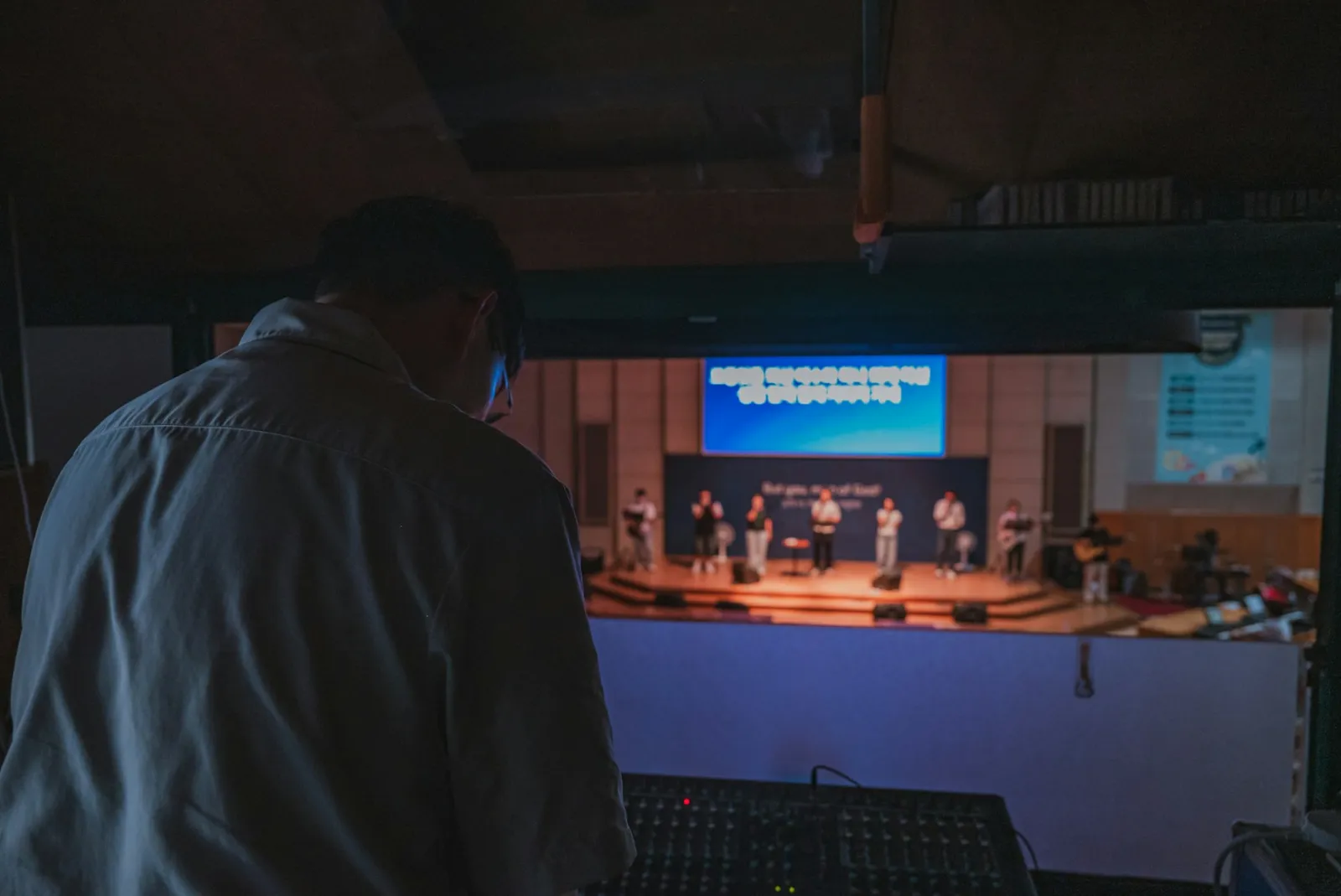
Church livestream audio: how to make your sermon sound clear online
Why church livestreams often sound bad, and the simple mixer settings that make sermons and worship sound clear at home.