

The simple church livestream setup: everything you need on one Mac
A practical, affordable church livestream setup for small and growing churches, from cameras and sound to going live on YouTube and Facebook.
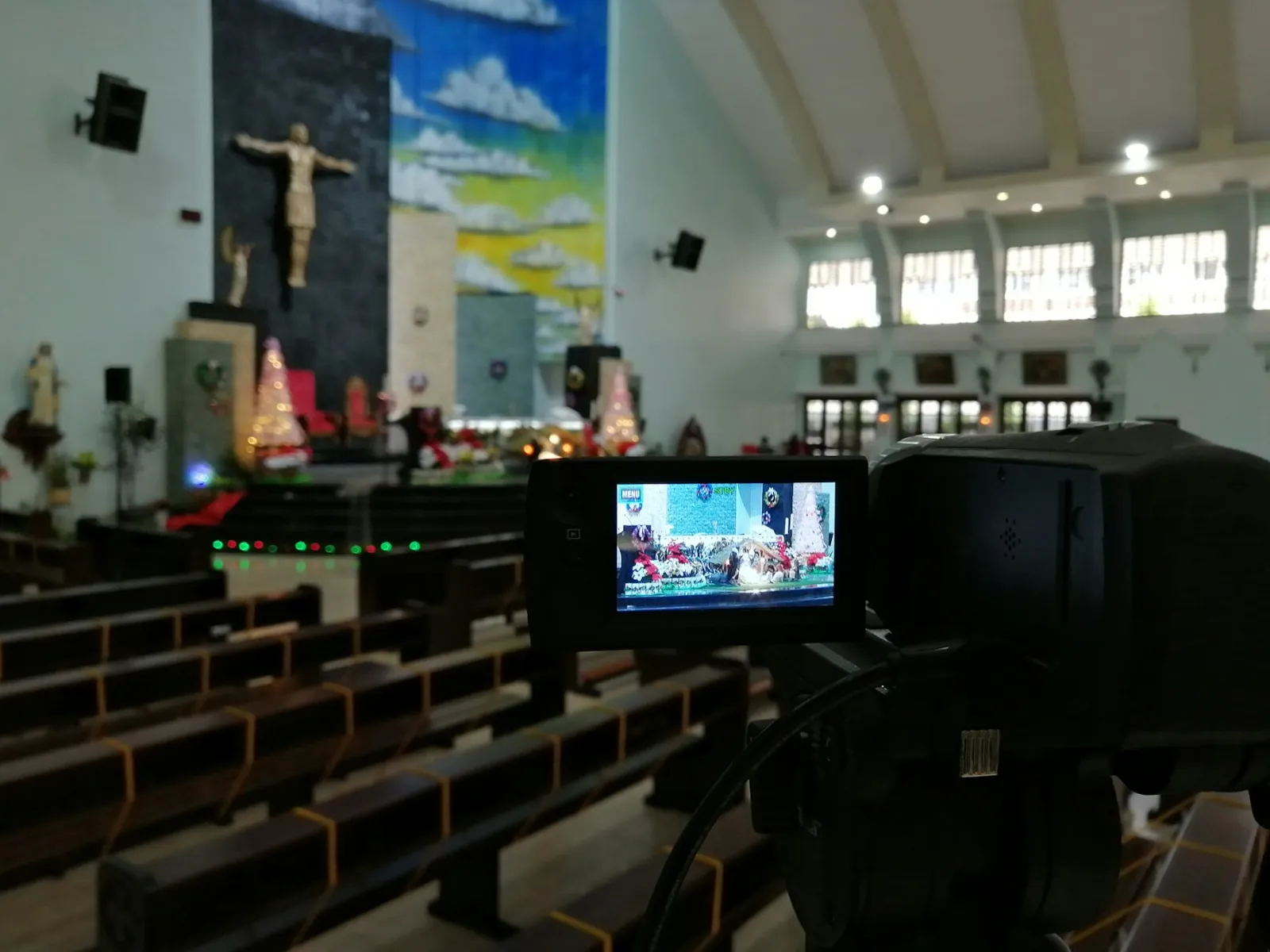
Many churches started streaming in a hurry: a phone on a tripod, or a laptop pointed at the pulpit. It worked, but the sound was thin, nobody could read the slides and something always broke on Sunday morning. You don’t need a broadcast truck to do better. One Mac and a few good choices give you a stream your online congregation will be proud to share.
The setup at a glance
- One Mac with StreamPort, Apple Silicon or Intel.
- One or two cameras: start with one on the pulpit; add a wide shot later.
- A feed from your sound desk into the Mac.
- A wired internet connection if at all possible.
Cameras
Start with one good camera on the speaker, at eye level, from the back of the room. A camcorder with HDMI output and a USB capture card gives a far better picture than a webcam, especially in a dim sanctuary. When you are ready, add a wide shot of the stage for worship, and switch between them.
A phone or tablet can be a second camera too: open a guest link on it and it joins your show over Wi-Fi, no app needed.
Sound: the part that matters most
Online viewers will forgive a soft picture. They will not stay for bad sound. Never use the camera’s own microphone. Take a feed from your sound desk into the Mac with a USB audio interface, so the stream hears exactly what the room hears.
Then use the mixer to make it sound right at home. Read how to make your sermon sound clear online for the settings.
Scenes for a whole service
Set up scenes once and reuse them every week:
- Countdown: “Service starts in 10:00” over a welcome image.
- Worship: the wide shot, with song lyrics if you use them.
- Speaker: close camera on the pastor.
- Scripture: the speaker with the verse as a lower third.
- Announcements: slides or a video.
- Closing: a thank-you image with your giving link.
New scenes always open in Preview first, so the operator can check before pressing Take. Nothing reaches the stream by accident.
Graphics that welcome people
Lower thirds with the speaker’s name, a banner with your giving link and an announcements ticker make online visitors feel addressed, not just allowed to watch. See church graphics for scripture, giving and announcements.
Where to stream
Most churches stream to YouTube and Facebook at the same time: YouTube for search and archive, Facebook because that is where members already spend time. Some add Instagram for younger members. StreamPort sends one service to all of them at once, and each platform reconnects by itself if it drops.
Budget
A capable starting setup, if you already have a Mac, is a camcorder you may already own, a USB capture card, a USB audio interface from your sound desk, and StreamPort Solo. Start there and add cameras as your team grows.
Keep it running
- Use the backup slate so viewers see a “we’ll be right back” image instead of a frozen screen if a camera drops.
- Record the service at the same time, so you have a clean copy for the website and social clips.
- Watch the Stats view: upload speed, dropped frames and sound levels at a glance.
Next, read how to run the whole stream with one volunteer.
Try StreamPort free for 14 days
Every feature, no credit card. Apple Silicon and Intel Macs.
Keep reading
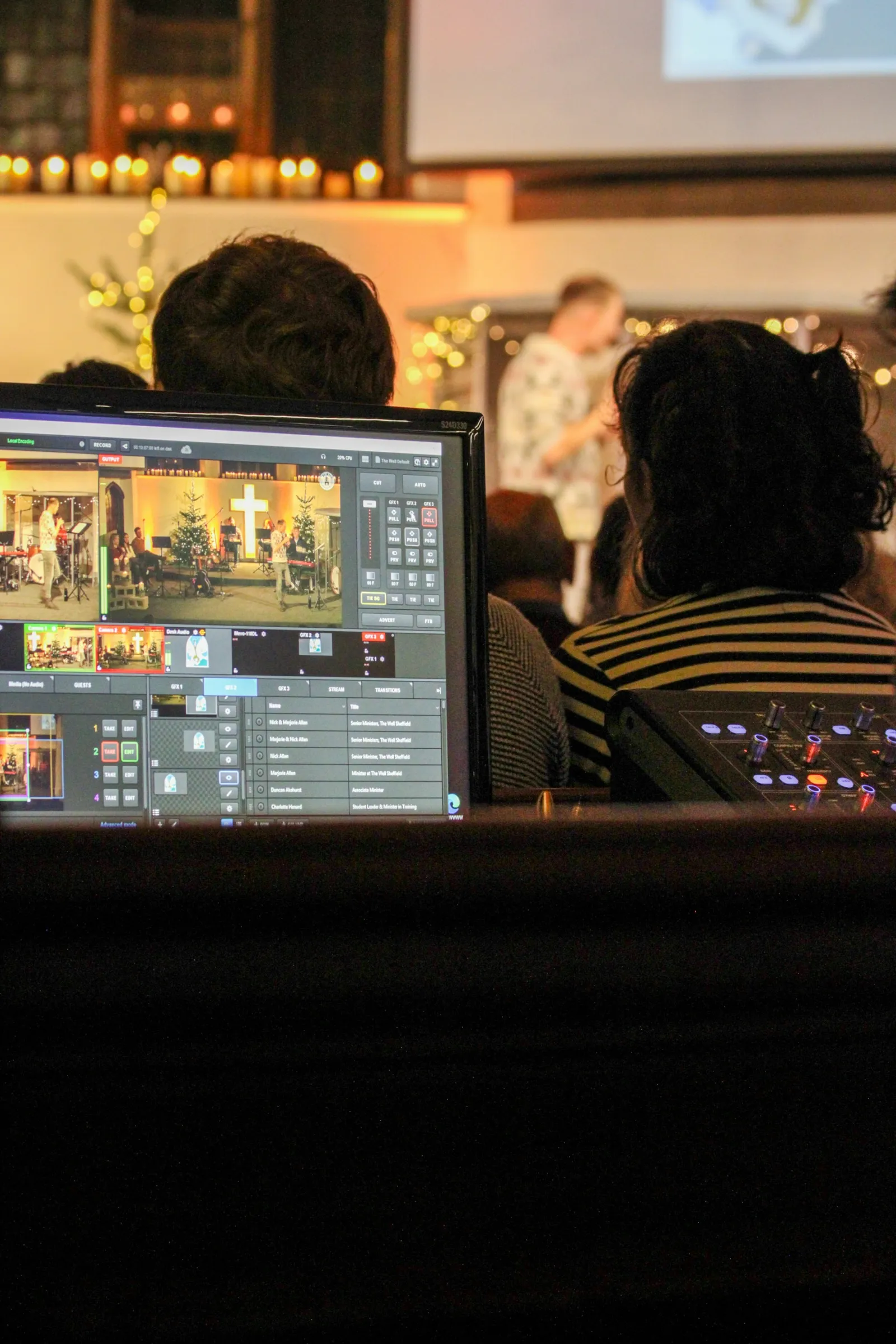
How to run a church livestream with just one volunteer
Presets, schedules and automation that let one volunteer run a polished church livestream calmly, even on their first Sunday.
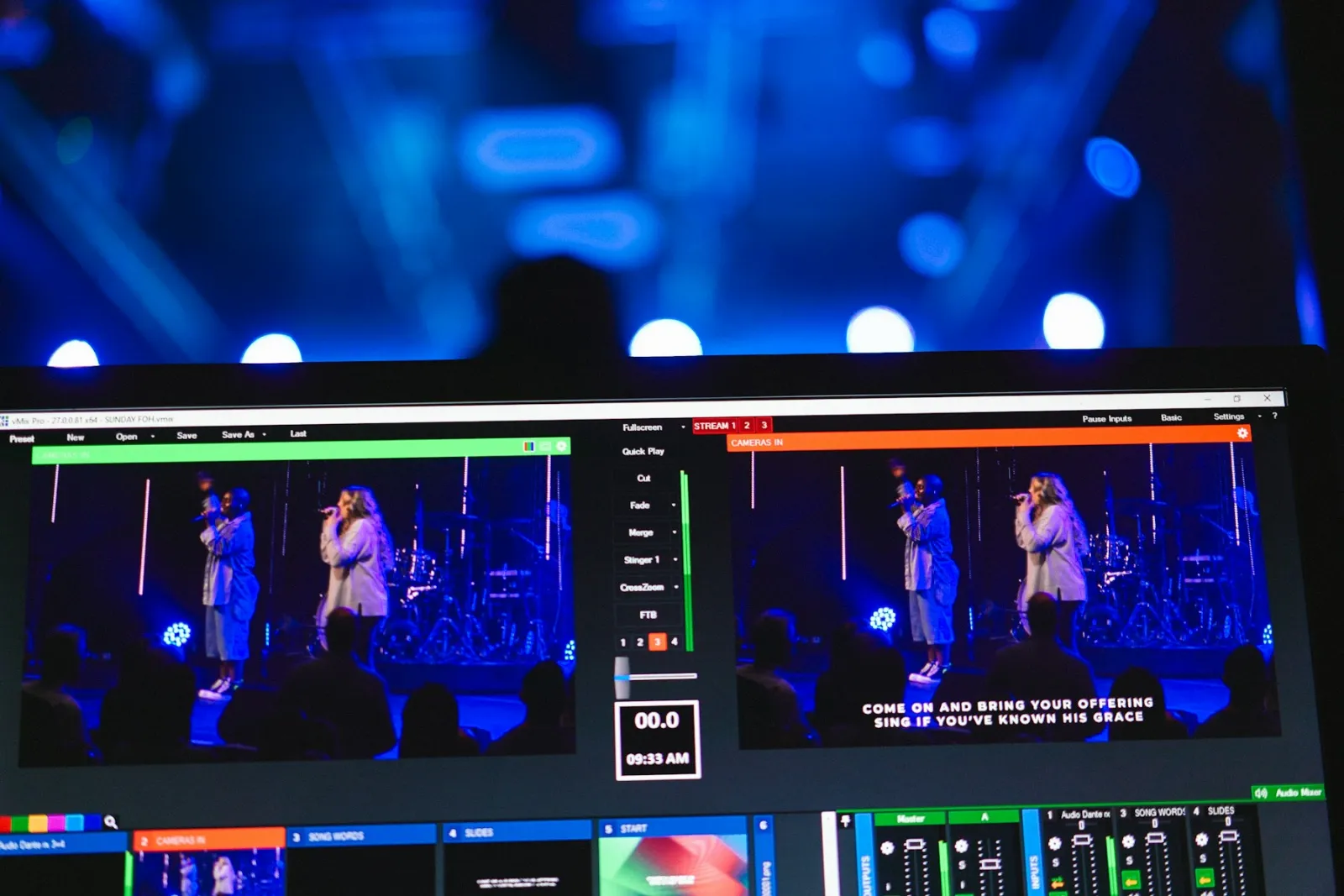
Church livestream graphics: scripture, giving and announcements
How to use lower thirds, banners, tickers and countdowns to make online worshippers feel welcome and engaged.
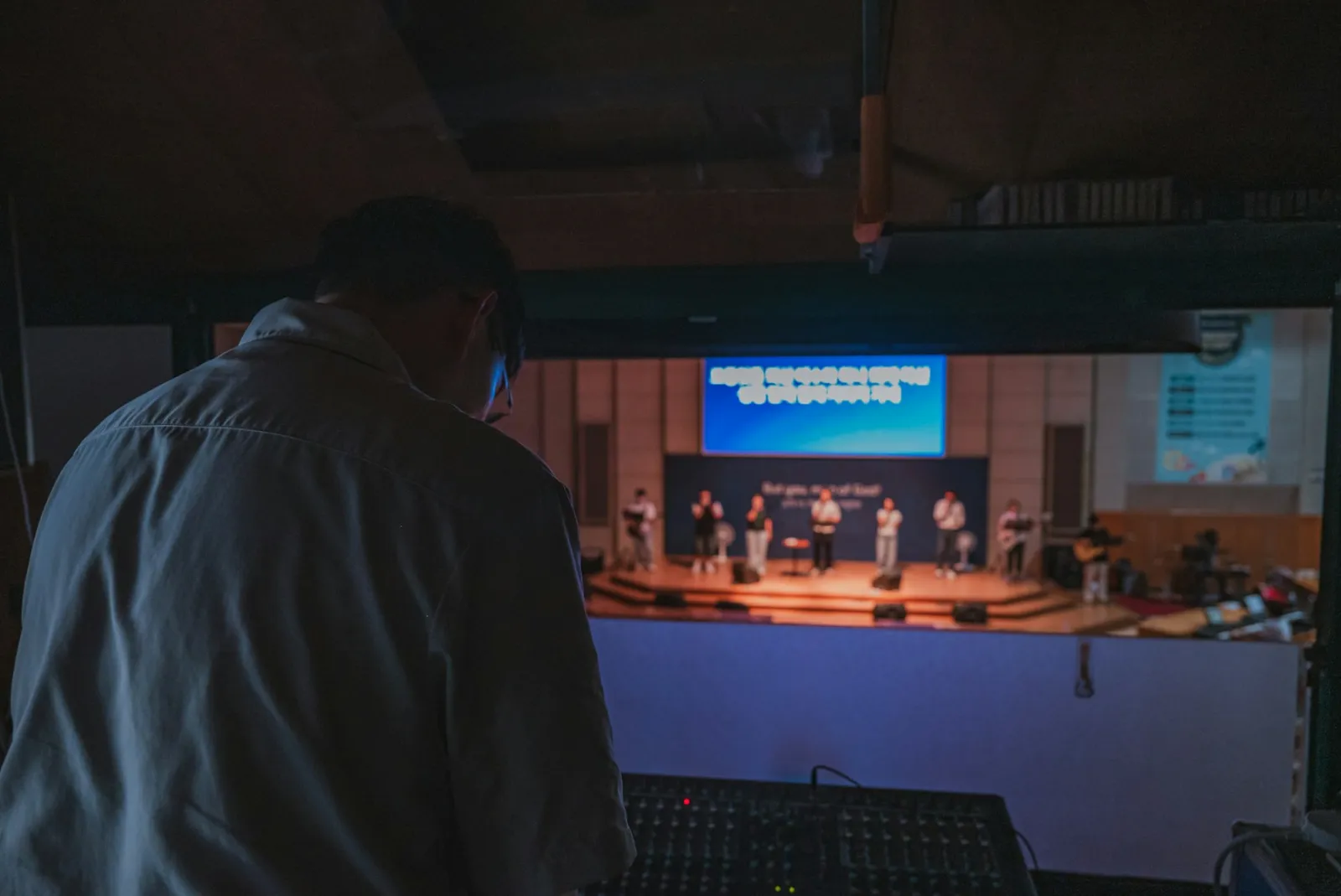
Church livestream audio: how to make your sermon sound clear online
Why church livestreams often sound bad, and the simple mixer settings that make sermons and worship sound clear at home.