

How to stream a camera to several platforms without OBS
You don’t need OBS or a switcher to multistream. Plug in a camera, press Go Live and reach every platform at once.
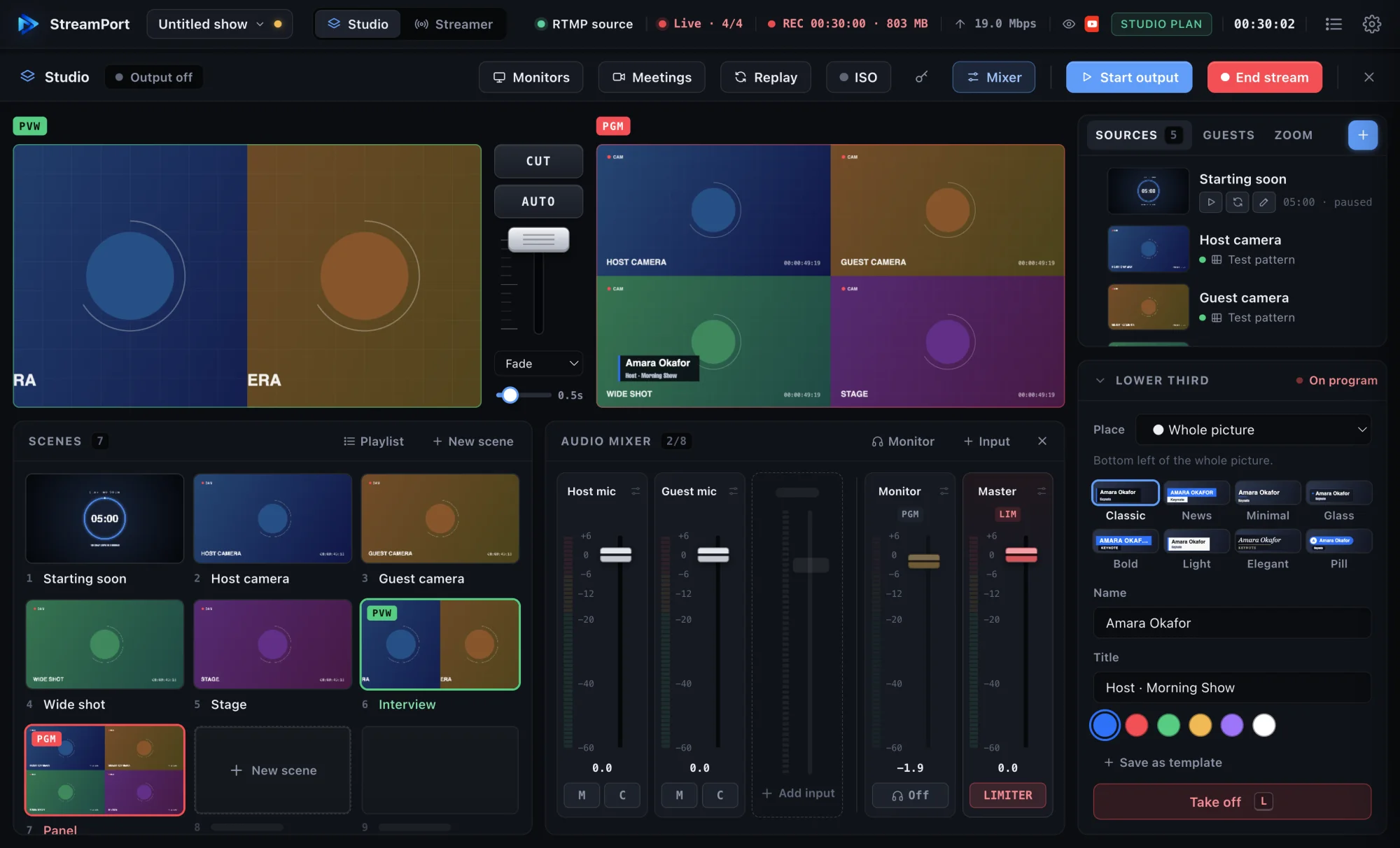
OBS is powerful, but for many people it is more than they need, and the settings can be intimidating. If you just want your camera live on YouTube, Facebook and more at the same time, you can skip it entirely.
Which camera can you use?
- Your Mac’s built-in camera: fine for talks and simple shows.
- A USB webcam: a clear step up, and plug and play.
- A real camera through an HDMI capture card: the best picture. Many cameras and camcorders have a clean HDMI output; a USB capture card turns it into a webcam your Mac understands.
- Your iPhone: with Continuity Camera on recent Macs, your iPhone shows up as a camera.
Step 1: Choose your camera and mic
Open StreamPort, press Add source in the Studio and choose your camera. Add your microphone. A USB microphone or a lapel mic makes a far bigger difference than a better camera, so if you upgrade one thing, upgrade the sound.
Step 2: Add your platforms
Open Settings → Destinations and add each platform with its stream key. See streaming to YouTube and Facebook at the same time for where to find the keys.
Step 3: Go Live
Press Go Live, check the pre-flight list and start. That is it. Your camera is live everywhere.
When you want more
The same app grows with you. When you are ready, add a second camera and switch between them, share your screen, bring on a remote guest, add lower thirds, or record every camera to its own file for editing later. You never have to move your setup to a different program.
Already using OBS or vMix?
Keep it. Point its RTMP output at StreamPort and StreamPort becomes your distribution hub: it passes your stream to every platform without re-encoding, reconnects destinations on its own and shows the health of each one. See connect an encoder.
Try StreamPort free for 14 days
Every feature, no credit card. Apple Silicon and Intel Macs.
Keep reading
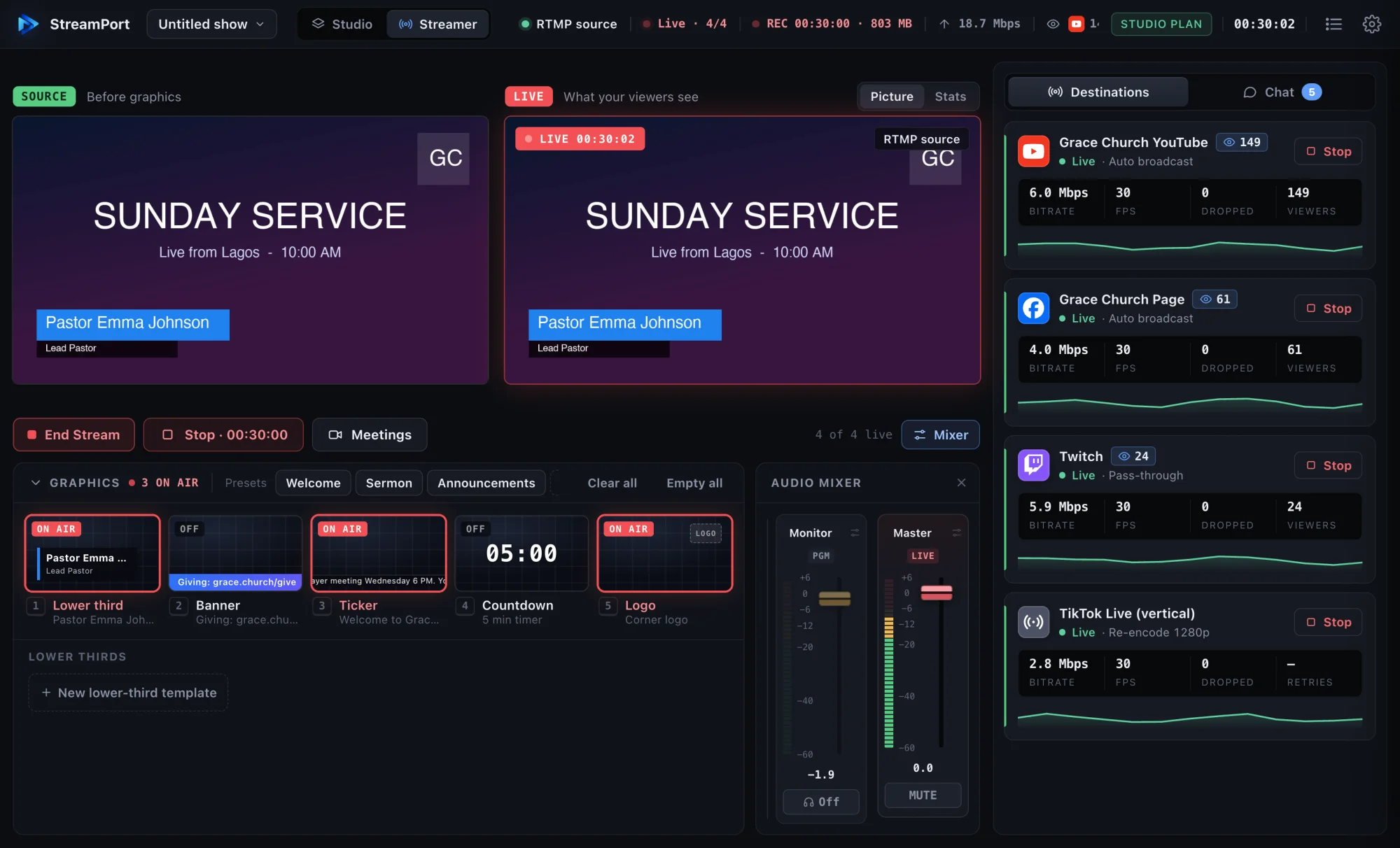
How to stream to YouTube and Facebook at the same time on a Mac
Go live on YouTube, Facebook and other platforms at once from one Mac, without a paid relay service or a second computer.
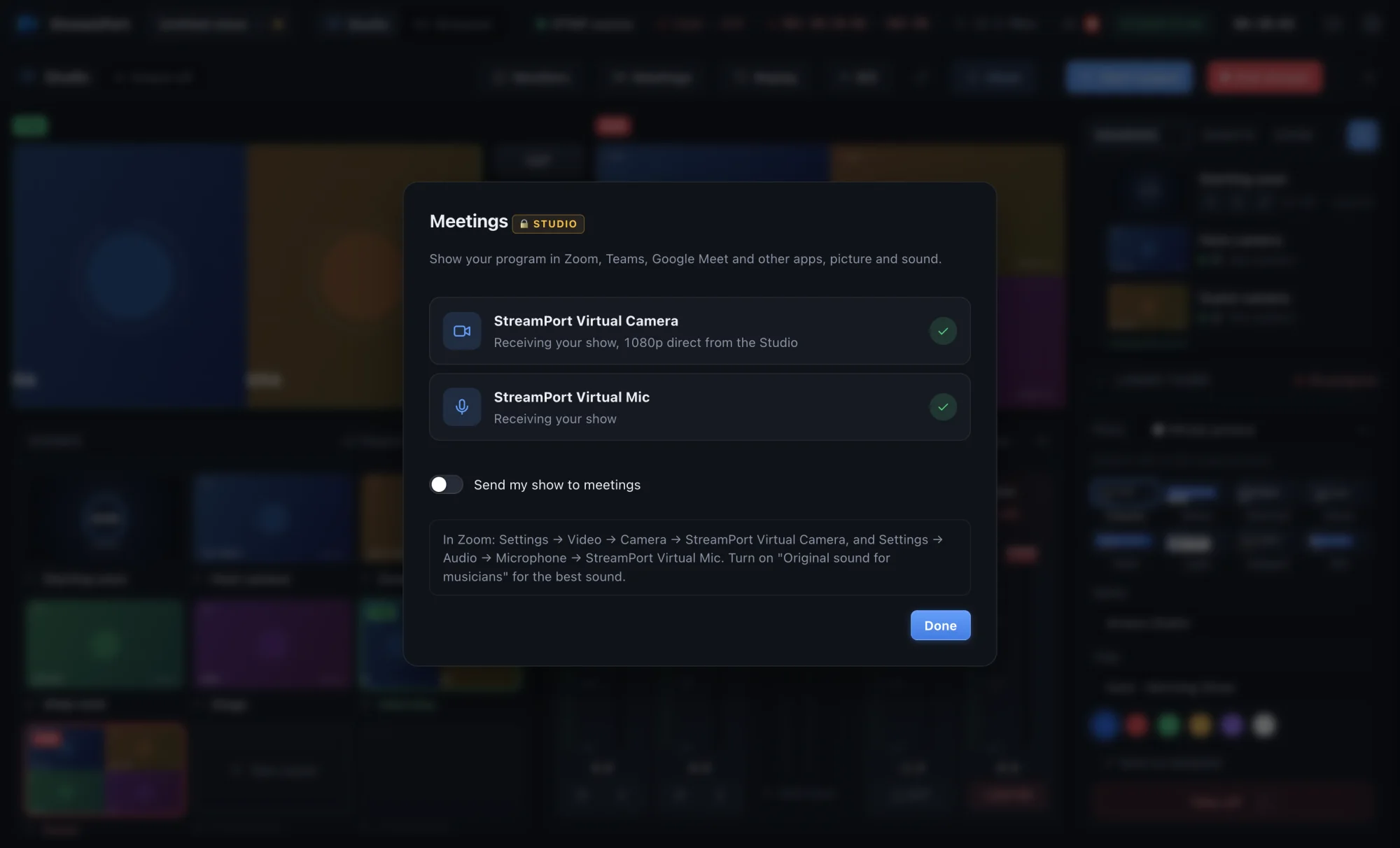
How to use your live show as a camera in Zoom, Teams and Google Meet
Send your finished show, with graphics, scenes and clean sound, into any meeting app as a camera and microphone.
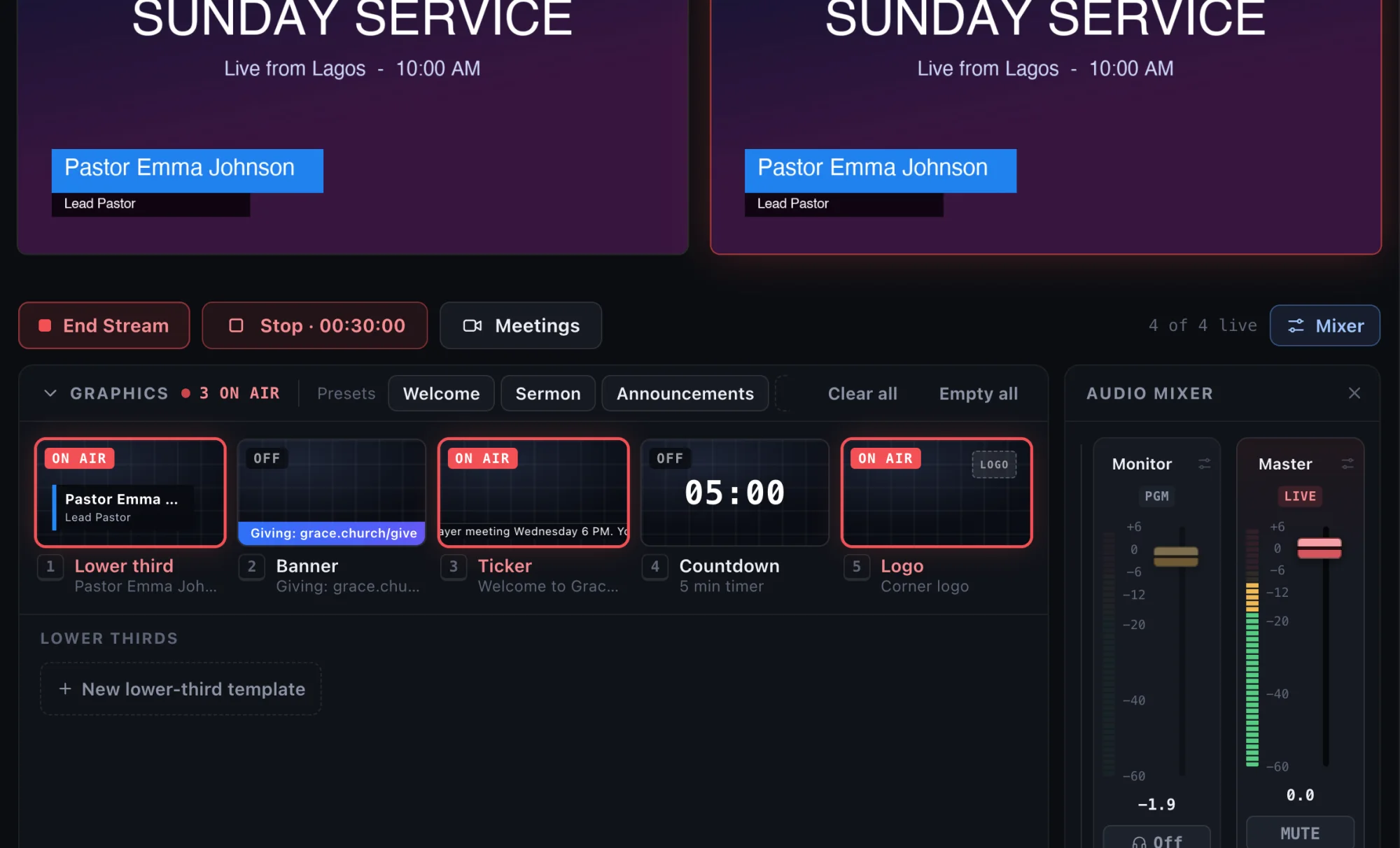
How to add lower thirds to a livestream (that look like TV)
Show names, titles, links and announcements on your livestream with clean lower thirds, banners and tickers.