IntroductoryIntro prices end October 31 · Solo from $9.92/month and Studio from $20.75/month, billed yearly.
See pricingRun your whole broadcast from an Elgato Stream Deck. Keys light up with what is on air: red when you are live, green and red tally on your scenes, amber when you are muted.
Plugin 153 KB · includes the Broadcast profile for every Stream Deck · Mac and Windows · needs StreamPort 1.0.25 or later (the Viewers key: 1.0.27)
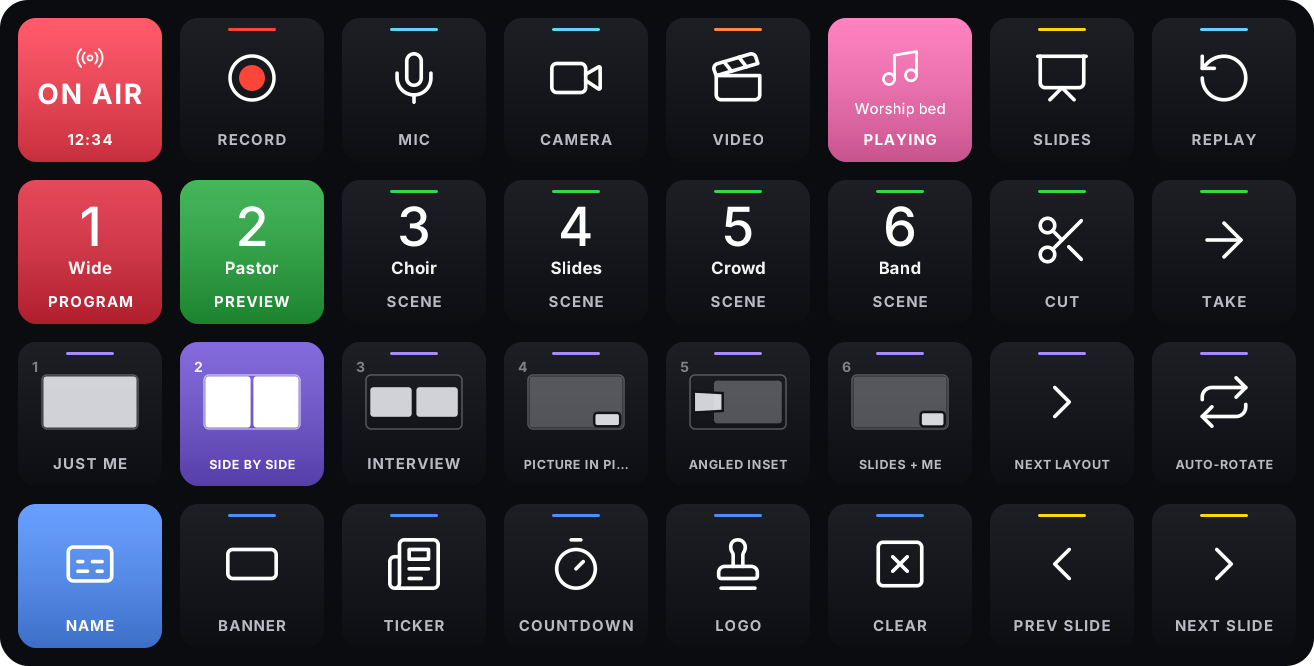
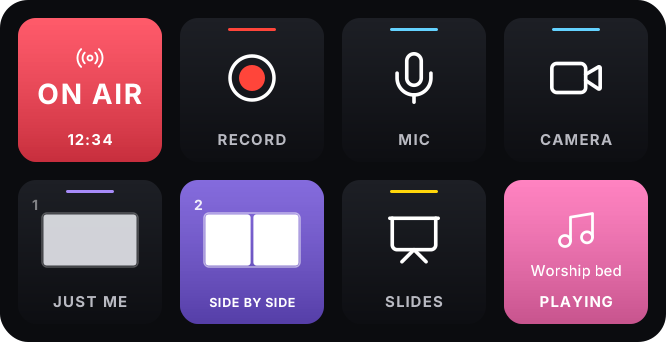
Thin line icons for Mic, Camera, Slides, Music, Video and every graphic, the same ones you see in StreamPort. Go Live turns red with the time on air. Record shows how long you have been recording. Mute lights amber. You never have to look at the Mac to know.
Scene keys show the scene name, red when it is on Program and green when it is on Preview, like a broadcast switcher. Take and Cut sit beside them.
Ending a stream takes a one-second hold, so a stray tap never ends your show. Change it per key if you want one tap.
Each layout key draws the layout itself, straight from your Layout bar: side by side, picture in picture, angled. The one on air lights up.
Turn to change layout, choose the next scene, step through slides or set the music volume. Press to take, present or pause.
A Viewers key shows how many people are watching right now, added up over every platform you are live on, with each platform’s count.
The plugin finds StreamPort on the same computer by itself. No addresses, no tokens, no network settings. Open StreamPort and the keys light up.
Designed for one-person shows, churches and studios. Install the plugin and pick yours, or add a single profile here.
32 keys: scenes with tally, layouts, every graphic, slides and music on one page
Download profile 3 KB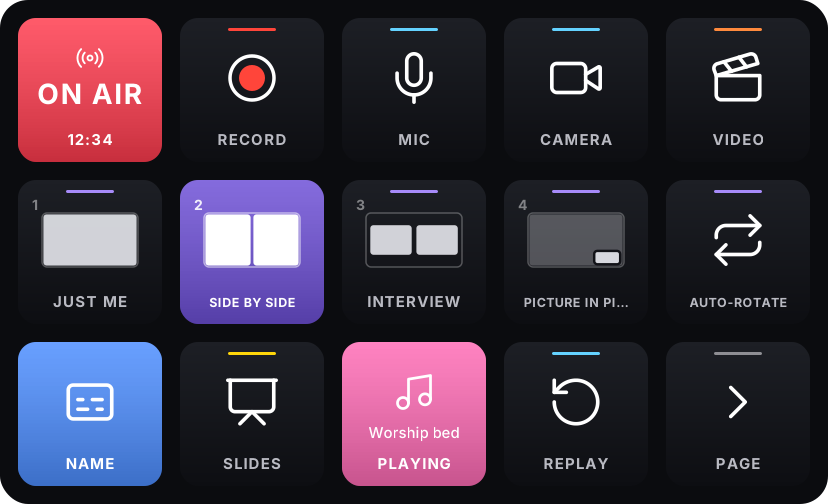
15 keys on two pages: Show (go live, layouts, graphics) and Studio (scenes, slides, music)
Download profile 4 KB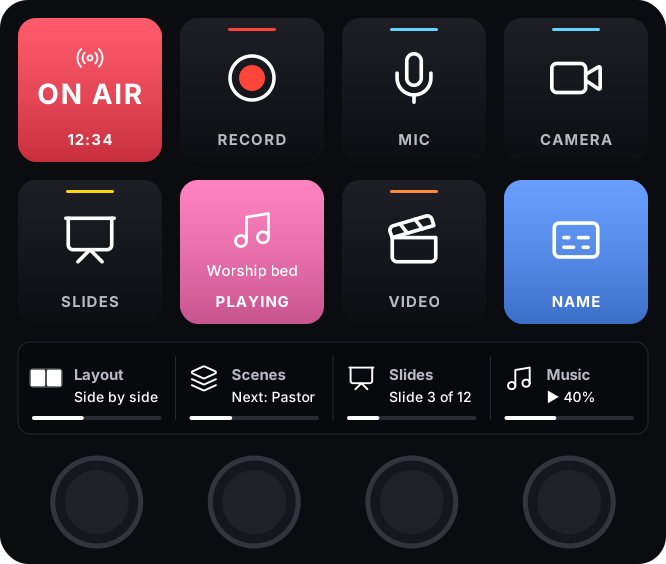
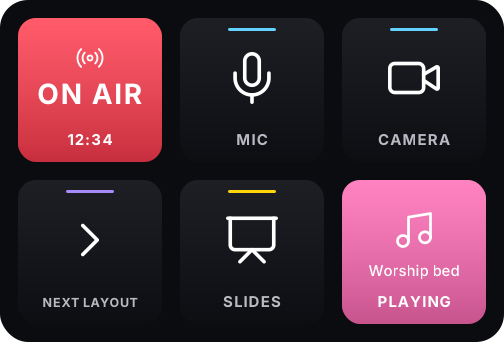
8 keys and 4 dials: turn for layouts, scenes, slides and music volume, press to take
Download profile 2 KBReady-made layouts for each kind of show, for every Stream Deck. Install the plugin first, then add the profile you want.
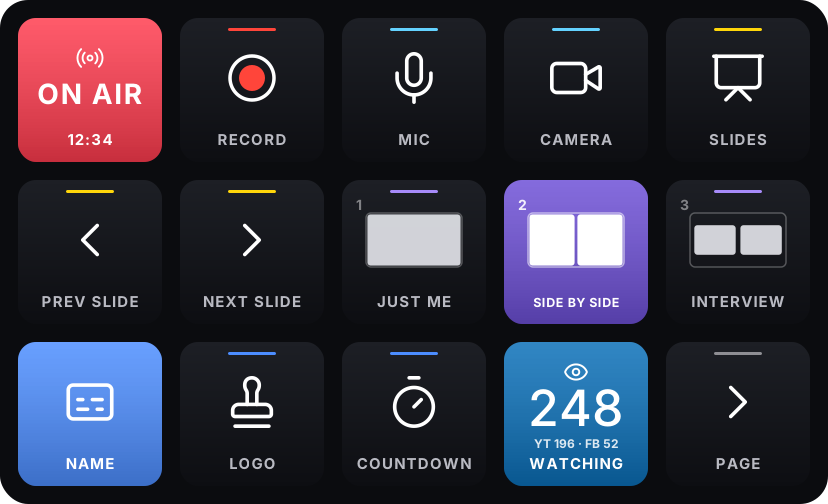
One person with slides: present, next and previous, layouts, names, countdown and viewers.
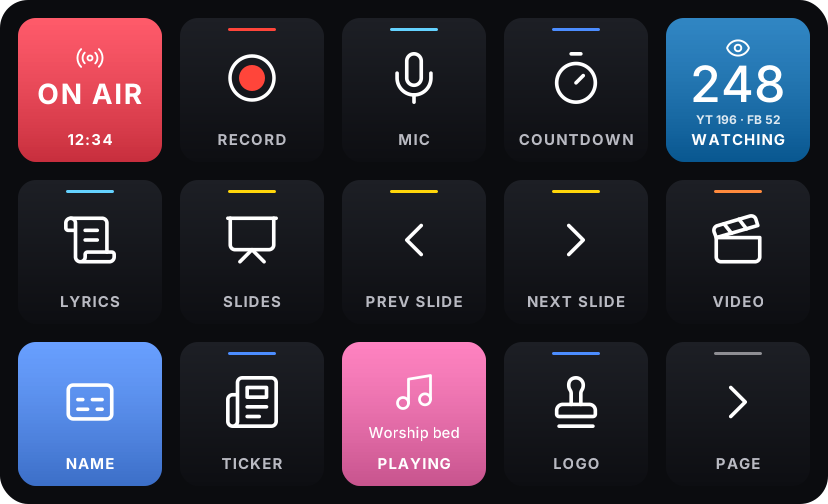
Services: lyrics, sermon slides, the announcements video, speaker names, a countdown to the start, music and Studio scenes.
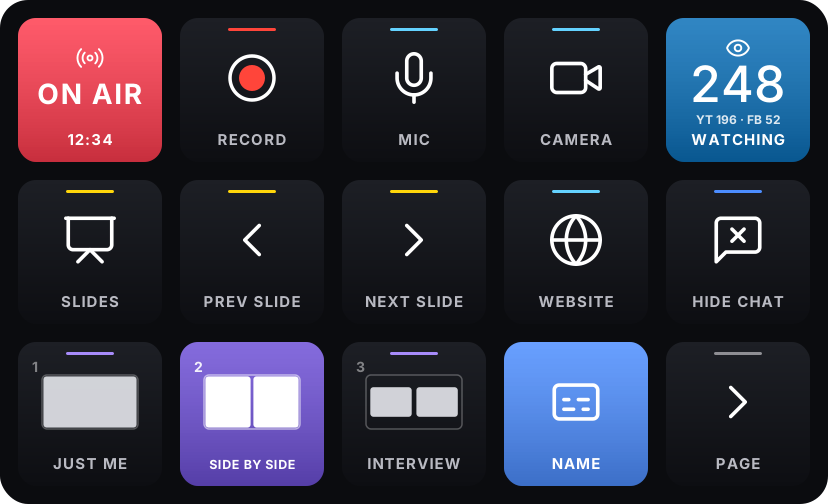
Teaching and talks: slides, a website, guests in layouts, names and hiding a chat question when you are done with it.
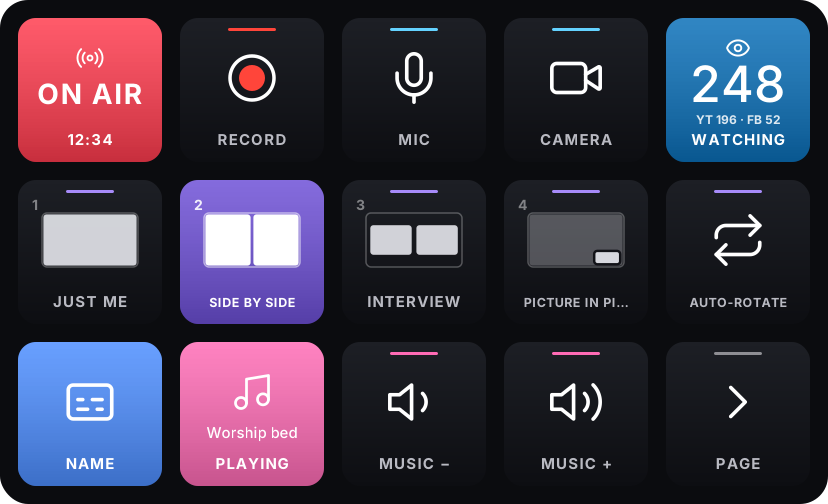
Conversations: host and guest layouts with auto-rotate, names, intro music up and down, and replays.
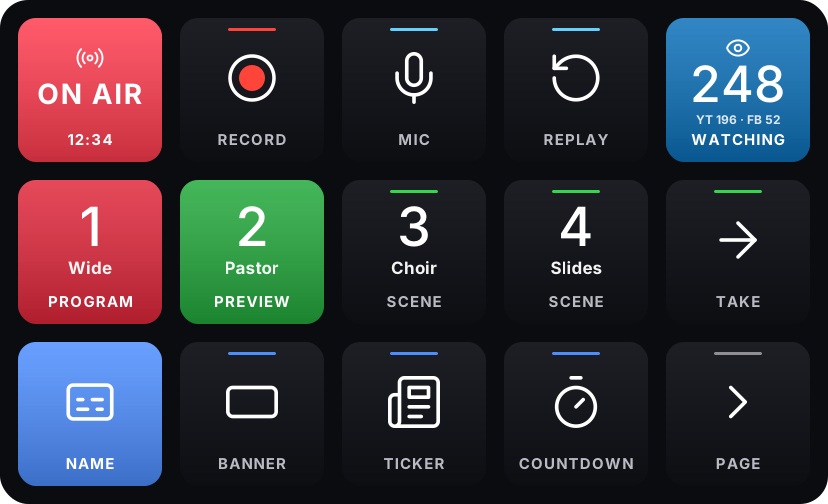
Produced shows: Studio scenes with tally, Take and Cut, every graphic, videos, music and viewers.
StreamPort.streamDeckPlugin. The Stream Deck app installs it and offers the StreamPort Broadcast profile for your deck.An Elgato Stream Deck (any model), the free Stream Deck app 6.5 or later, and StreamPort 1.0.25 or later on the same computer.
Get the plugin first: it includes the Broadcast profile for every Stream Deck, and Stream Deck adds the one for your deck when you install it. The Presenter, Church, Webinar, Podcast and Live Show profiles are extra: double-click one to add it. They all need the plugin.
Yes. The StreamPort actions are in the Stream Deck app under StreamPort. Drag any of them to a key, and choose what it does in the settings below. "Any StreamPort action" reaches every action in StreamPort → Keyboard shortcuts.
Not yet. Stream Deck connects to a computer, so the plugin works with StreamPort for Mac.
The plugin only talks to StreamPort on the same computer, using a private key that only your user account can read. Nothing on your network or the internet can press your keys.
Companion can still use the HTTP addresses from Remote control (see the Stream Deck docs page).
The plugin is free. StreamPort is free for 14 days, no credit card.