

How to live stream church services from an iPhone or iPad
A simple Sunday setup for streaming your church service from an iPhone or iPad: gear, sound, names, slides, and a checklist one volunteer can follow.
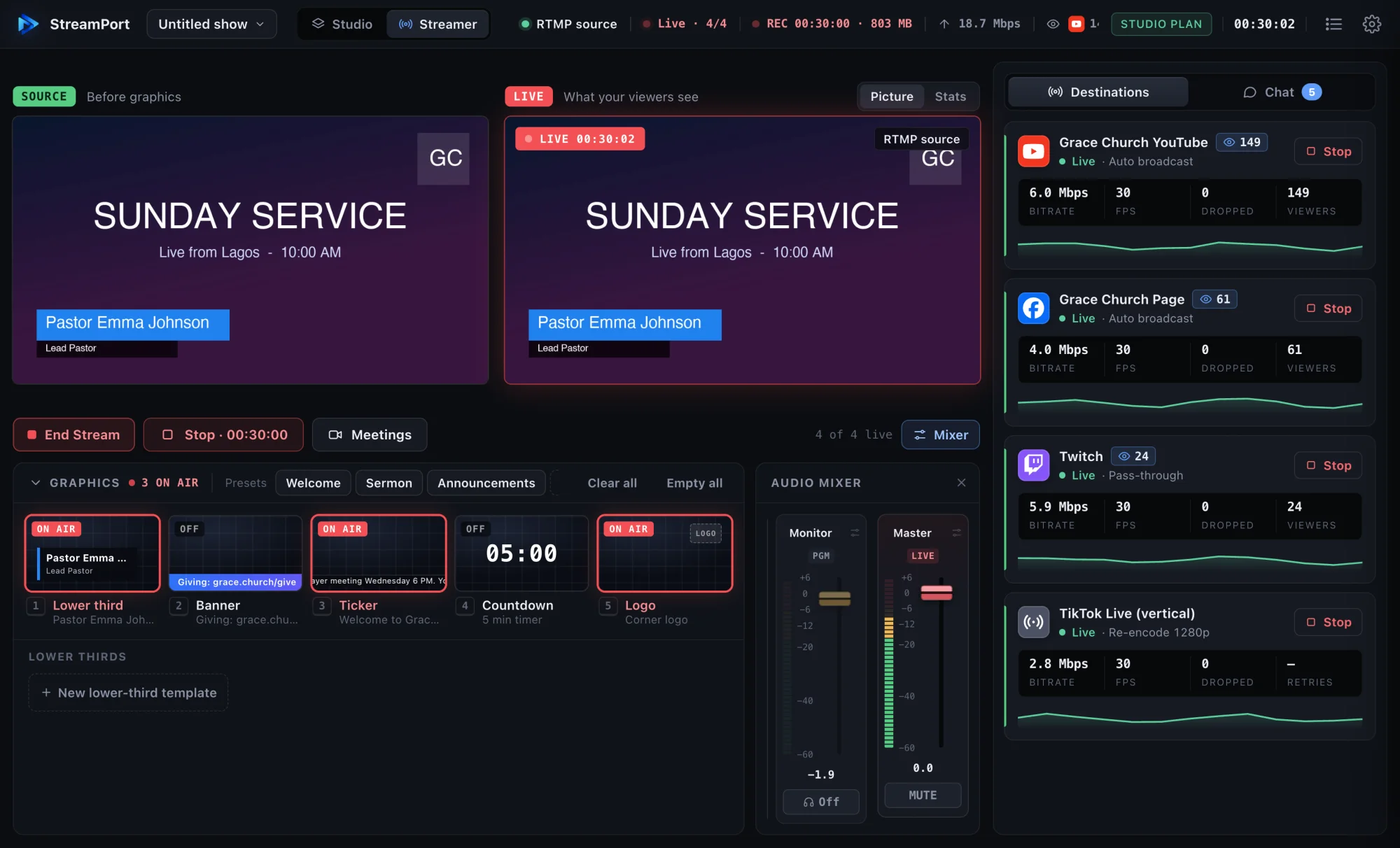
You don’t need a studio, a computer or a team to stream your service. An iPhone or iPad, a steady spot to put it and one volunteer are enough to reach people at home, in hospital and on the road. This guide gives you a simple setup and a checklist for Sunday morning.
What you need
- An iPad or iPhone. The iPad’s bigger screen is easier to run during a service; an iPhone works well as a second camera or a backup.
- A tripod or stand. A shaky picture is the first thing viewers notice.
- Internet at the camera position. Test the signal where you will actually stand. A wired connection through a USB-C network adapter is steadier than Wi-Fi.
- A microphone feed. Phone and iPad microphones pick up the room, not the speaker. If you have a sound desk, feed a clean mix from it into the device.
- Power. Keep the device charging for the whole service.
Where to put the camera
Place it at the back or the side, at eye level or a little above, with a clear view of the pulpit or stage. Stay away from the aisle, where people will walk in front of it. Turn the device sideways (landscape) so the picture fills the screen on a TV and on a phone.
Sound comes first
People will watch a plain picture with clear sound, but they leave when they can’t hear. Feed the sound desk into the device if you can, and listen with headphones for a minute before you go live. Our guide to clear sermon sound goes deeper.
Where to stream
Most churches stream to YouTube and Facebook, because that is where members already are. With StreamPort you add each destination once and go live to all of them with one tap. Keep your stream keys private; never post a screenshot that shows them.
What to put on screen
- A countdown before the service, so people can settle in.
- Names and titles for the pastor and guest speakers.
- Slides for songs and announcements, from a PowerPoint or PDF file.
- Your church logo in a corner.
Prepare these on Saturday. On Sunday the volunteer only has to tap, not type. For more ideas, see graphics for scripture, giving and announcements.
A Sunday checklist for your volunteer
- Device charging and Do Not Disturb on, so notifications don’t appear on screen.
- Camera placed, steady and clean.
- Sound checked with headphones.
- Destinations added and keys correct.
- Countdown started 5 to 10 minutes early.
- Press Record, then Go Live. Confirm when asked.
- Watch the connection indicator during the service.
- At the end, stop the stream, then stop the recording.
If something goes wrong
- The internet drops: StreamPort reconnects on its own. Keep recording so you still have the service.
- Sound is low or distorted: check the level meter and the feed from the sound desk first.
- Picture is dark: turn on more room light, or move the camera away from a bright window.
Read more about running a church livestream with one volunteer and how to live stream from an iPad.
Go live from your iPad with StreamPort
Also on iPhone and Mac. Try it free for 14 days.
Keep reading
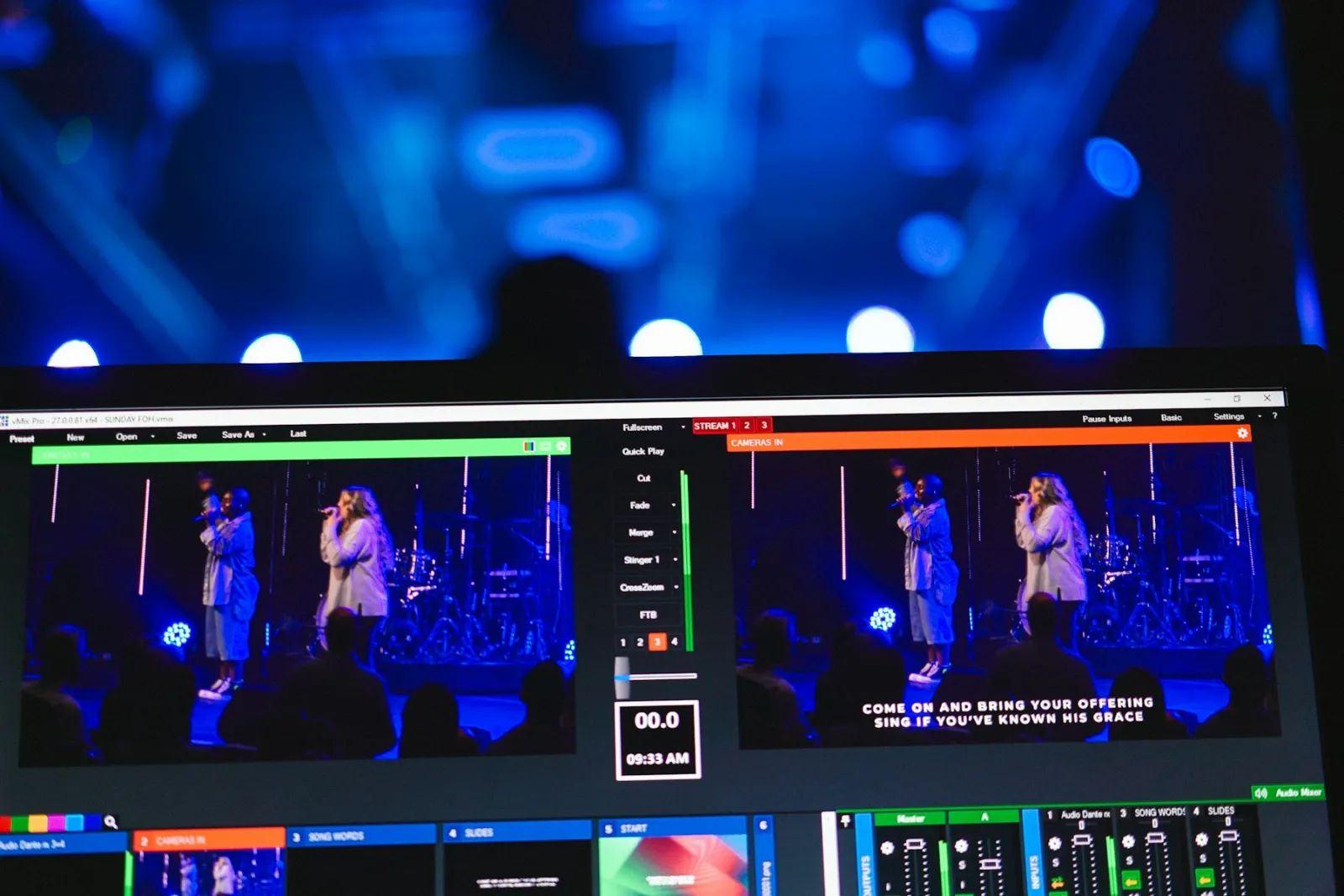
How to put a Bible verse on your livestream
Show scripture on screen while the pastor reads: type a reference, pick a translation, and step through the passages from your iPhone or iPad.
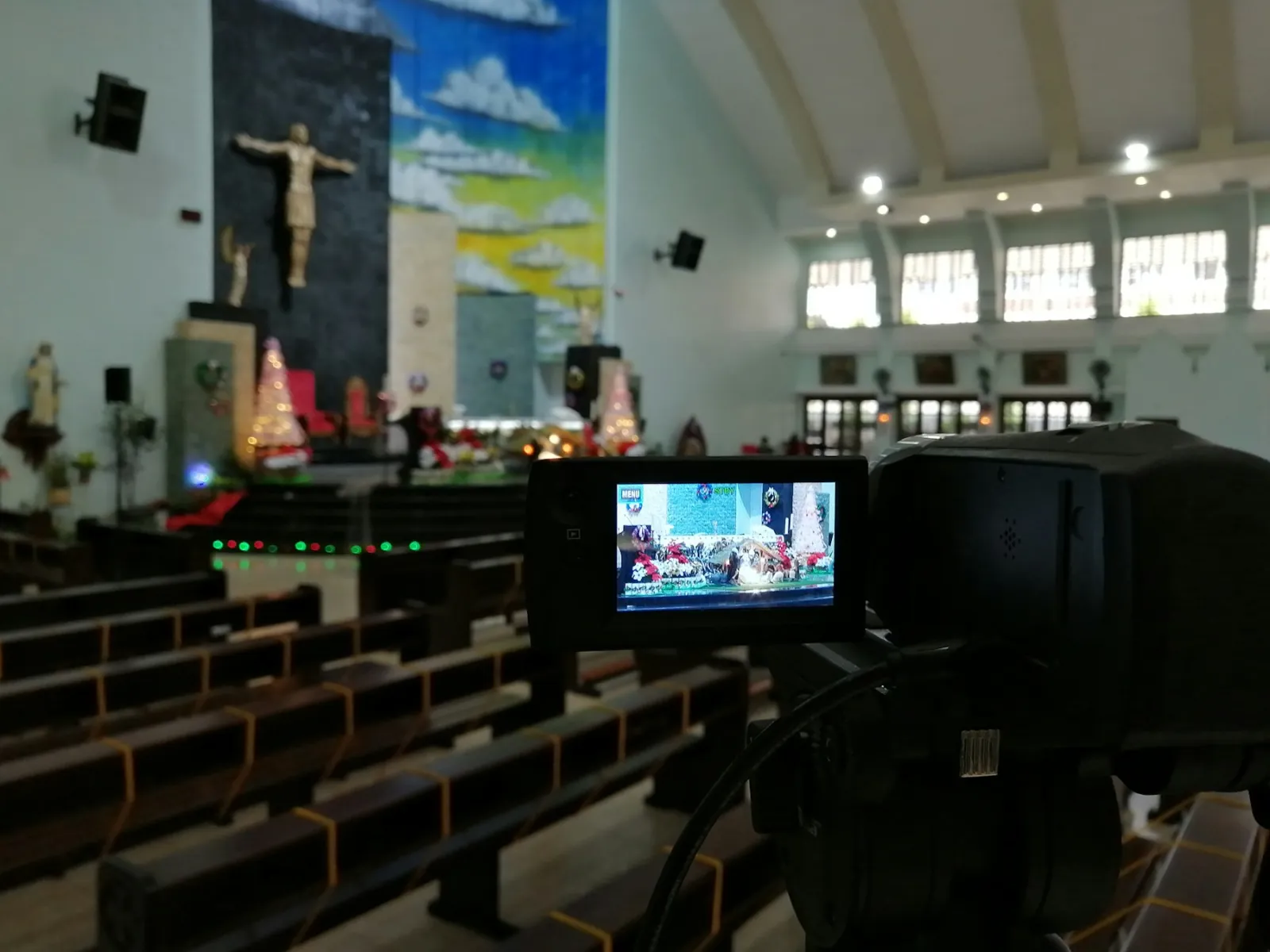
The simple church livestream setup: everything you need on one Mac
A practical, affordable church livestream setup for small and growing churches, from cameras and sound to going live on YouTube and Facebook.
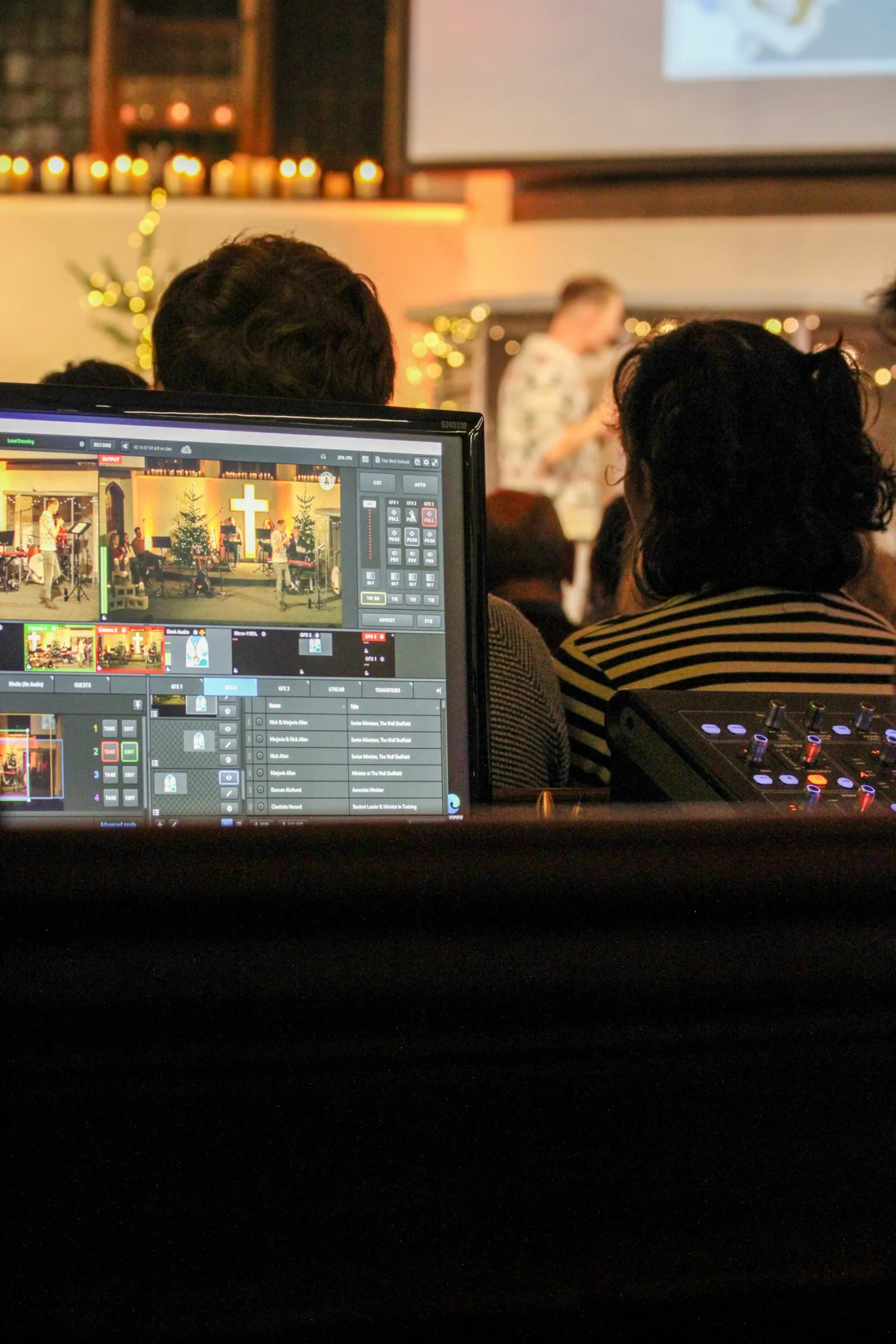
How to run a church livestream with just one volunteer
Presets, schedules and automation that let one volunteer run a polished church livestream calmly, even on their first Sunday.